
Quick links to popular guides
Browse via device topic
Help & support guides for your Apple iPad 4 (iOS7)
I can't turn on my tablet
If you can't turn on your tablet, follow these instructions to solve the problem.
Solution: Charge the battery
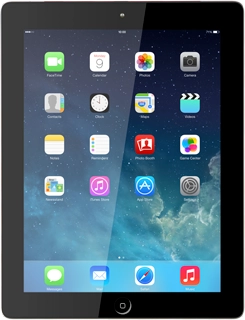
1. Connect the charging cable to your tablet
Connect the charging cable to the charger and then to a wall socket.
- Connect the charging cable to the charger and then to a wall socket.
- Connect the other end of the charging cable to the tablet socket.
- When the battery charging icon is displayed, charging is in progress.
- When the battery is fully charged, you can remove the charger from the wall socket and your tablet.
Solution: Retrieve PUK code and unblock SIM
Solution: Insert SIM
- Turn the back of your tablet towards you.
- Insert the opener for the SIM holder into the small hole in the SIM holder on the side of your tablet.
- Remove the SIM holder from your tablet.
- Turn your SIM so that the angled corner of your SIM matches the angled corner of the SIM holder.
- Place your SIM in the SIM holder.
- Slide the SIM holder into your tablet.
Solution: Before you can use a Telstra SIM, you need to unlock your tablet using an unlock code. To get the unlock code, contact the operator that locked your tablet.
Solution: When using a SIM from another operator, you'll need to unlock your tablet. Find your nearest Telstra Shop or contact customer serviceto unlock your phone. To unlock your tablet, certain conditions need to be met, this may not be free of charge.
Solution: Turn your tablet on and off
- Press On/Off until your tablet is turned on.
- Slide your finger right on the display.
- Press Unlock.
- Key in your PIN and press OK.
- If your tablet rejects the SIM:
- Contact your distributor or service provider where you bought your tablet.
- Press and hold On/Off.
- Drag the arrow right to turn off your tablet.
Solution: Check if your SIM is faulty by inserting it in another tablet. If your SIM is not accepted by the other tablet, your SIM is probably faulty. Find your nearest Telstra Shop or contact customer service to order a new SIM.
Solution: Turn use of lock code on or off
- Press Settings.
- Press General.
- Press Passcode Lock.
- Select one of the following options:
- Turn on lock code, go to 2a.
- Turn off lock code, go to 2b.
- Press Turn Passcode On.
- Key in a lock code of your own choice.
- Key in the same lock code again.
- Press Require Passcode.
- Press Immediately or the required interval.
- Press Passcode Lock to go back to the settings.
- Press Turn Passcode Off.
- Key in the lock code.
- Press the Home key to return to the home screen.
Solution: Turn your tablet on and off
- Press On/Off until your tablet is turned on.
- Slide your finger right on the display.
- Press Unlock.
- Key in your PIN and press OK.
- If your tablet rejects the SIM:
- Contact your distributor or service provider where you bought your tablet.
- Press and hold On/Off.
- Drag the arrow right to turn off your tablet.
Solution: You need a new SIM. Find your nearest Telstra Shop or contact customer service to order a new SIM.