Search suggestions will appear below the field as you type
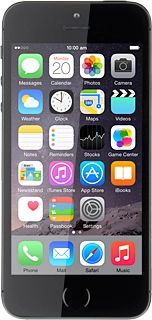
Browse via device topic
Help & support guides for your Apple iPhone 5s (iOS8)
I can't send and receive email
If you can't send and receive email, there may be several causes of the problem.
Solution: Contact your email provider for the correct settings for the incoming or outgoing server.
Solution: Write and send email
- Press Mail.
- To see a list of email accounts:
- Press the field in the top left corner of the display.
- Press the required email account below "All Inboxes".
- Press the new email icon.
- Press To and key in the first letters of the required contact.
- Matching contacts are displayed.
- Press the required contact.
- Repeat the procedure to add more recipients.
- Press Subject and key in a subject for the email.
- Press the text input field and write the required text.
- Press and hold anywhere on the text input field.
- Press arrow right, if required.
- Press Insert Photo or Video.
- Go to the required folder.
- Press the required picture or the required video clip.
- Press Choose.
- Press Send when you've finished your email.
- Press the Home key to return to the home screen.
Solution: Set up your phone for email
- Press Settings.
- Press Mail, Contacts, Calendars.
- Press Add Account.
- Press the required provider or Other.
- If you select Other:
- Press Add Mail Account.
- Press Name and key in the name you want to use as sender name in your email.
- Press Email and key in your email address.
- Press Password and key in the password for your email account at your email provider.
- Press Description and key in the required name.
- Press Next.
- Press POP.
- Press "Host Name" below "INCOMING MAIL SERVER" and key in the name of your email provider's incoming server.
- Press "User Name" below "INCOMING MAIL SERVER" and key in the username for your email account.
- Press "Host Name" below "OUTGOING MAIL SERVER" and key in the name of your email provider's outgoing server.
- Press "User Name" below "OUTGOING MAIL SERVER" and key in the username for the outgoing server.
- Press "Password" below "OUTGOING MAIL SERVER" and key in the password for the outgoing server.
- Press Save.
- Press the name of the email account you've just set up.
- Press "SMTP" below "OUTGOING MAIL SERVER".
- Press the field below "PRIMARY SERVER".
- Press the indicator next to "Use SSL" until the function is turned off.
- Press Authentication.
- Press Password.
- Press Back.
- Press Server Port.
- Key in 25 and press Done.
- Press the name of the email account you've just set up.
- Press Advanced.
- Press the indicator next to "Use SSL" until the function is turned off.
- Press Authentication.
- Press Password.
- Press Advanced.
- Press Server Port and key in 110
- Press the name of the email account you've just set up.
- Press Done.
- Press Fetch New Data.
- Press the indicator nexto to "Push" to turn the function on or off.
- If you turn off Push:
- Press the required period or Manually.
- To select settings for a specific email account:
- Press the required email account.
- Press Fetch or Manual.
- Press Back.
- Press Mail....
- Press the Home key to return to the home screen.
Solution: Set up your phone for Exchange email
- Press Settings.
- Press Mail, Contacts, Calendars.
- Press Add Account.
- Press Exchange.
- Press Email and key in your email address.
- Press Password and key in the password for your email account.
- Press Description and key in the required name.
- Press Next.
- Press Server and key in the server address.
- Press Domain and key in the domain name.
- Press Username and key in the username for the server.
- Press Password and key in the password for your email account.
- Press Next.
- Press the indicator next to the required data type to turn synchronisation of the specific data types on or off.
- Press Save.
- Press the name of the Exchange email account you've just set up.
- Press Account.
- Press Advanced Settings.
- Press the indicator next to "Use SSL" to turn the function on or off.
- Press Account.
- Press Done.
- Press Mail....
- Press Fetch New Data.
- Press the indicator nexto to "Push" to turn the function on or off.
- If you turn off Push:
- Press the required period or Manually.
- To select settings for a specific email account:
- Press the required email account.
- Press Push, Fetch or Manual.
- Press Back.
- Press Mail... to finish setting up the email account.
- Press the Home key to return to the home screen.