Quick links to popular guides
Browse via device topic
Help & support guides for your LG G5
I can't send and receive picture messages
If you can't send and receive picture messages, there may be several causes of the problem.
To send and receive picture messages, your phone needs to be correctly set up for picture messaging.
Solution: Set up your phone for picture messaging
1. Find "Access point names"
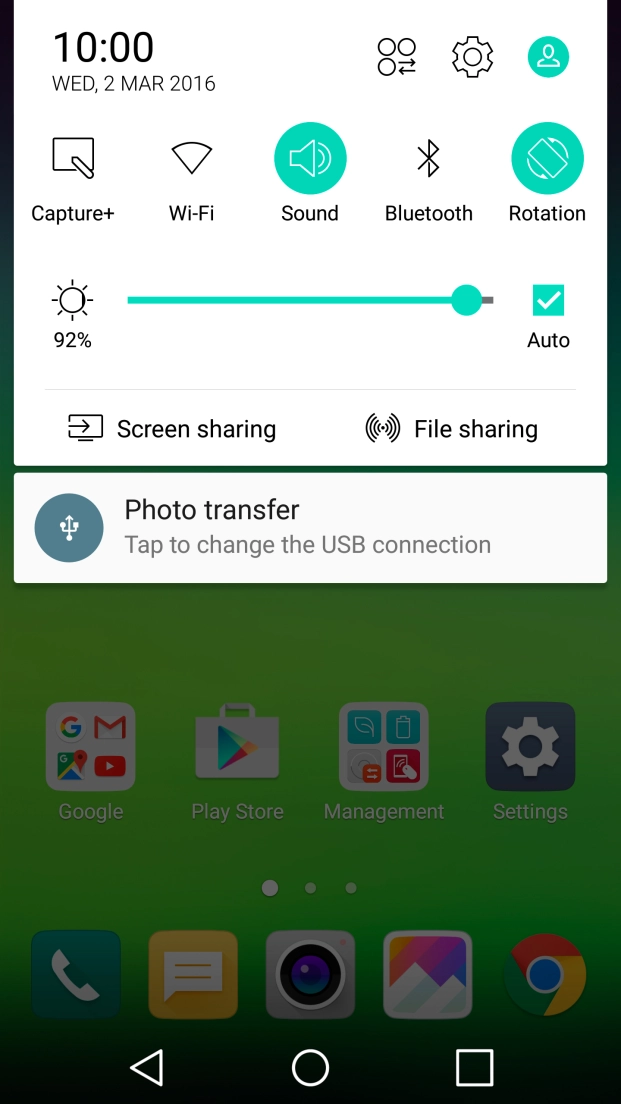
Slide your finger downwards starting from the top of the screen.
- Slide your finger downwards starting from the top of the screen.
- Press the settings icon.
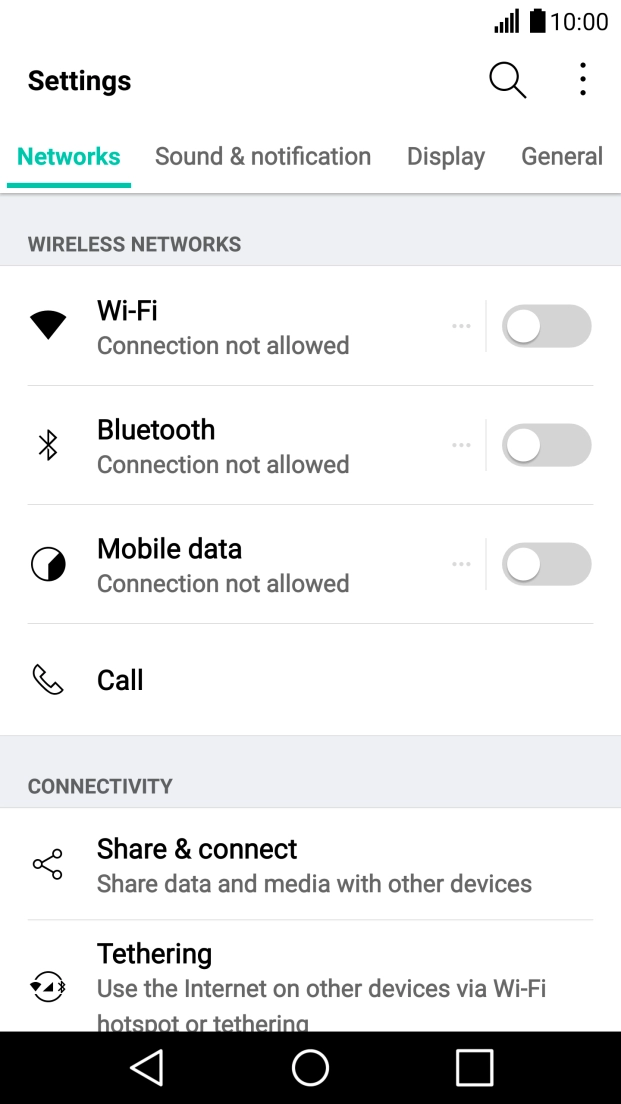
- Press Networks.
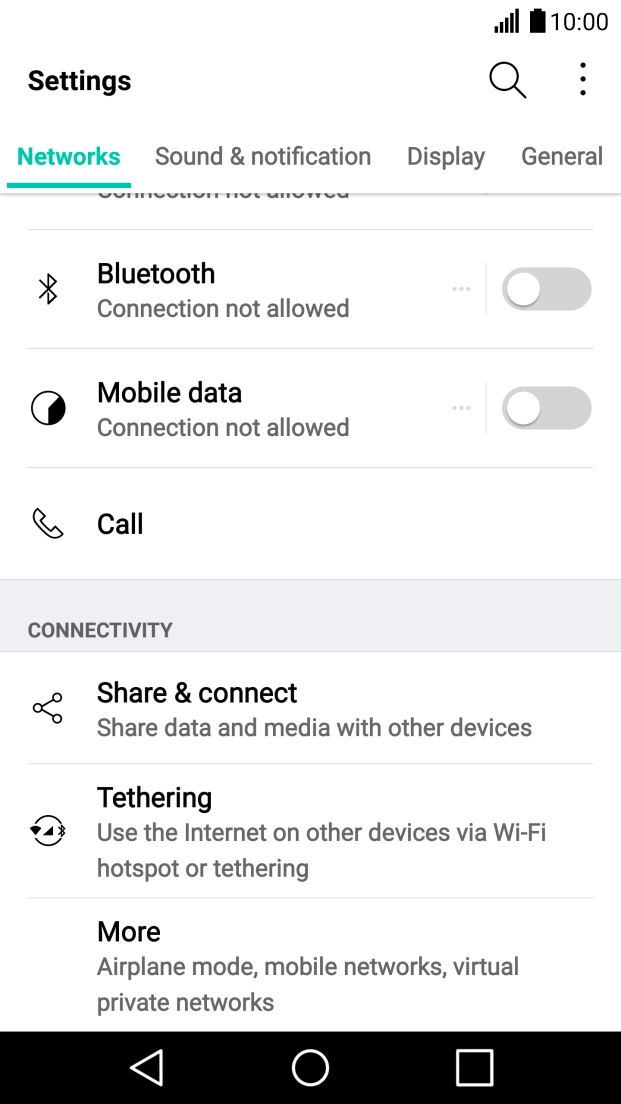
- Press More.
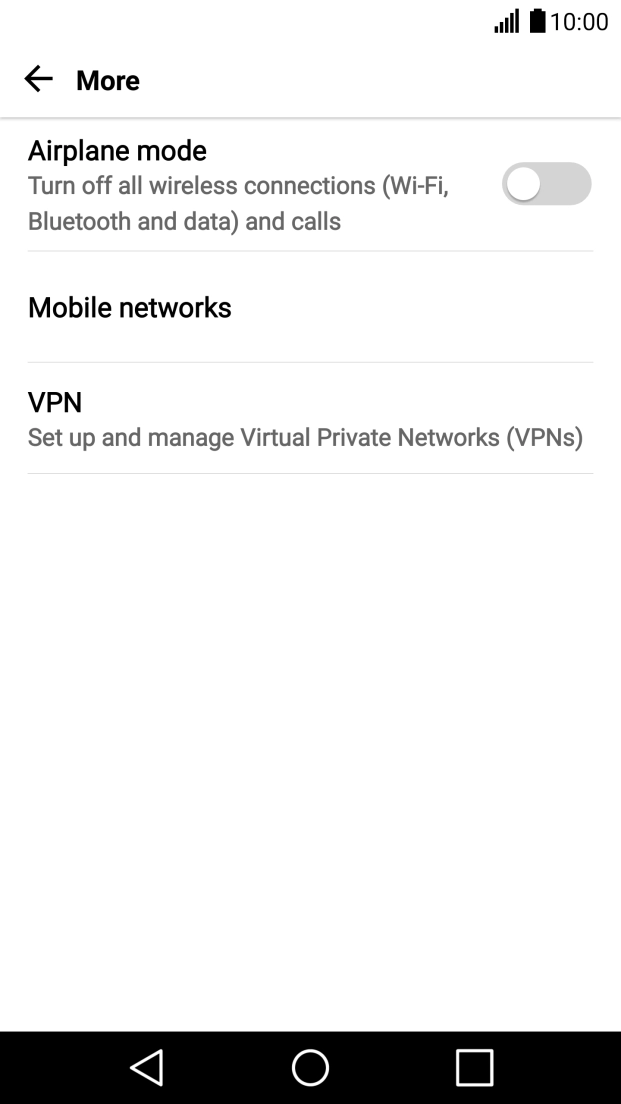
- Press Mobile networks.
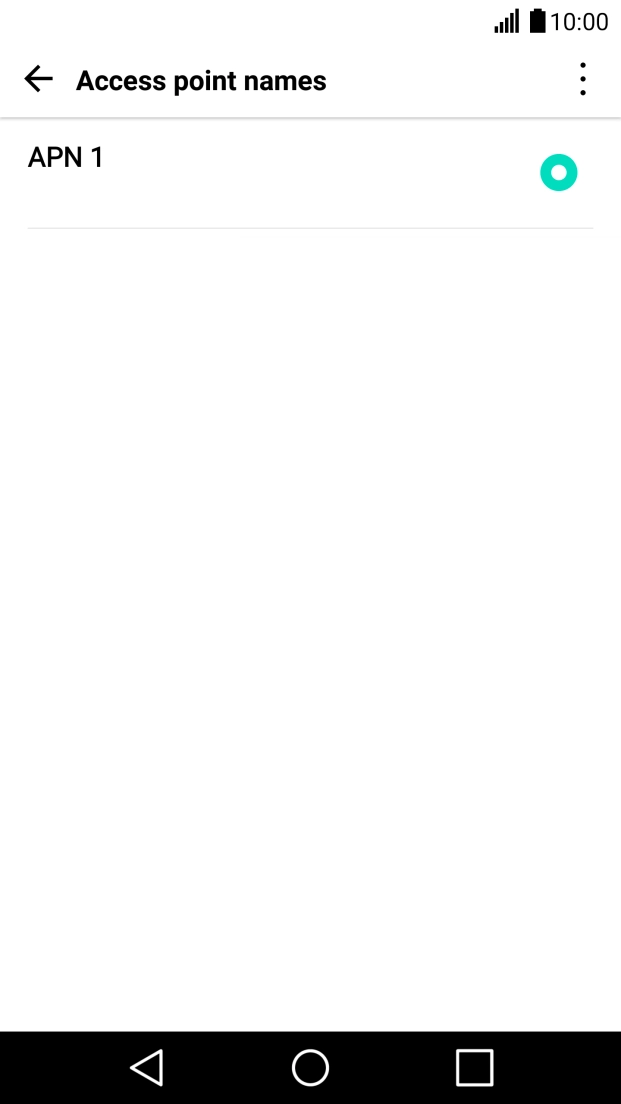
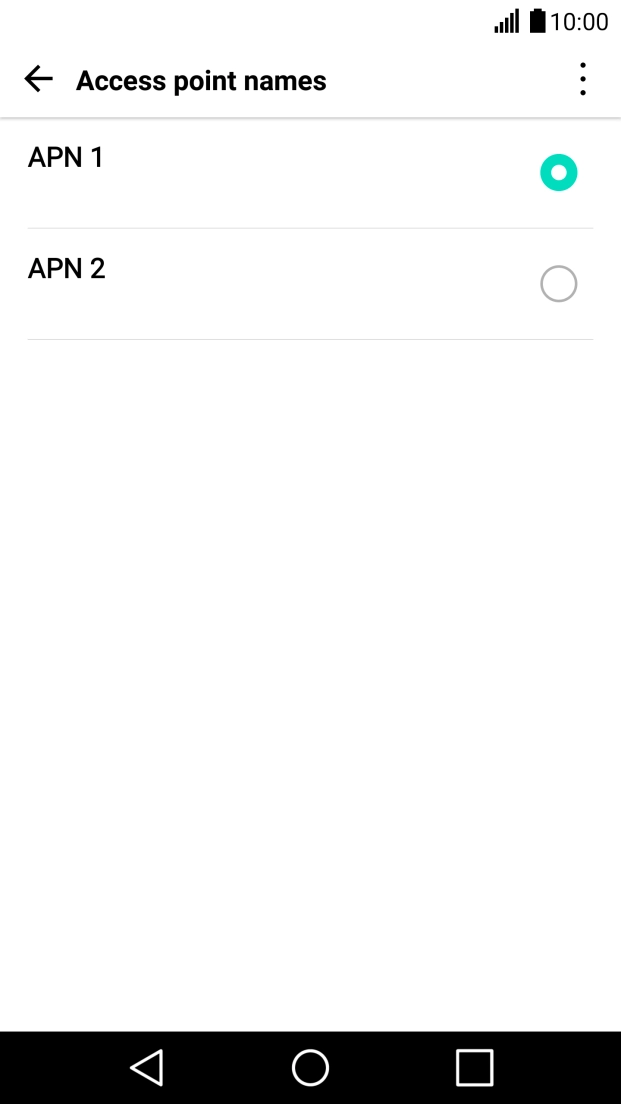
- Press Access point names.
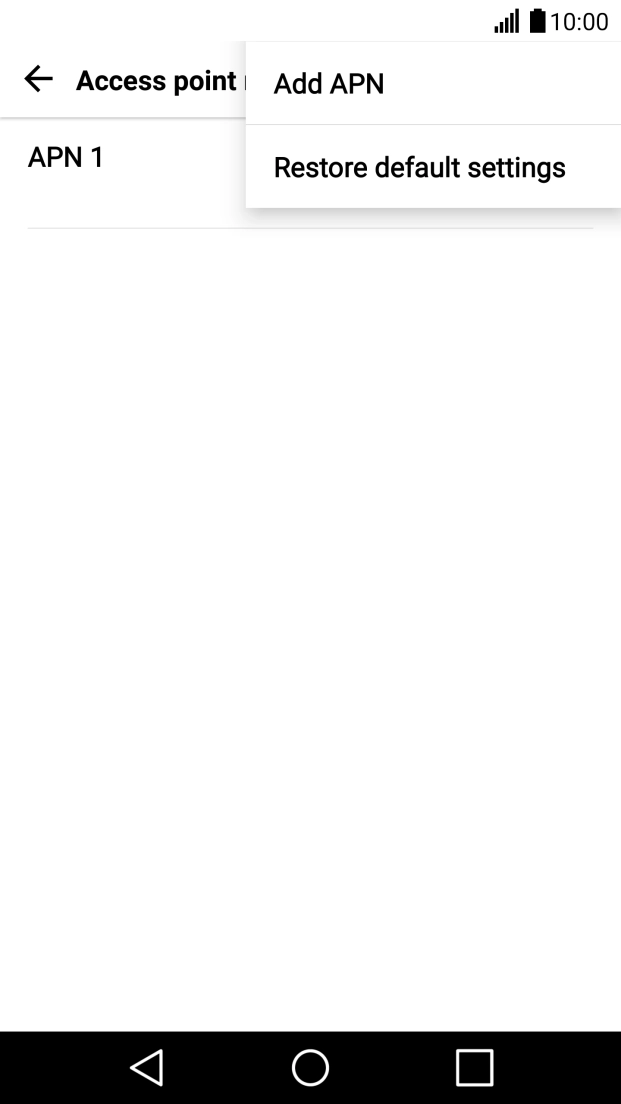
- Press the menu icon.
- Press Add APN.
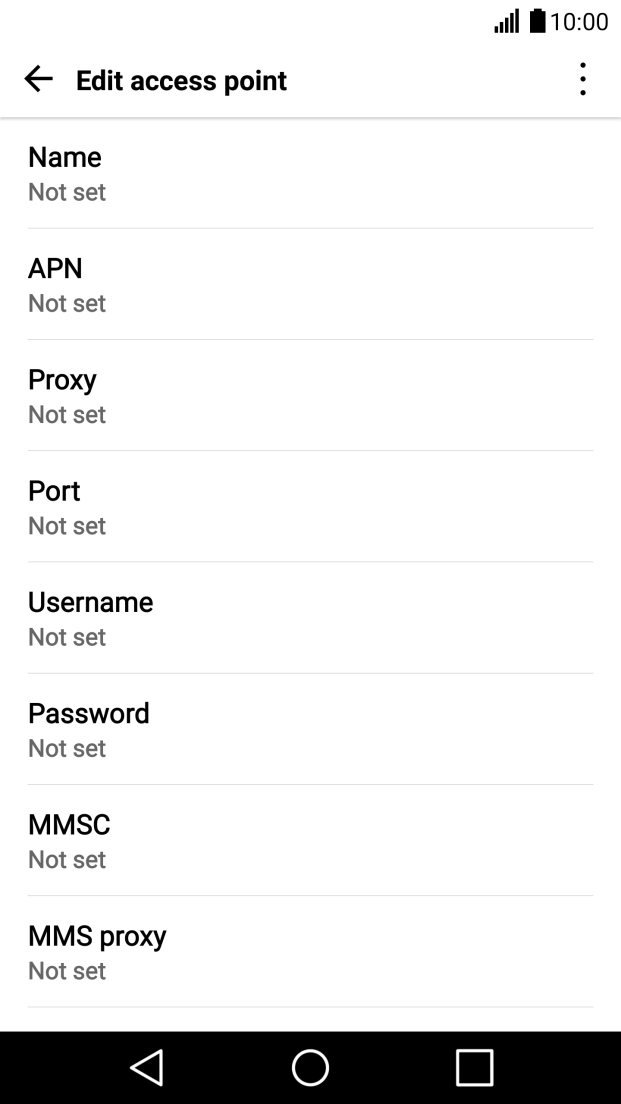
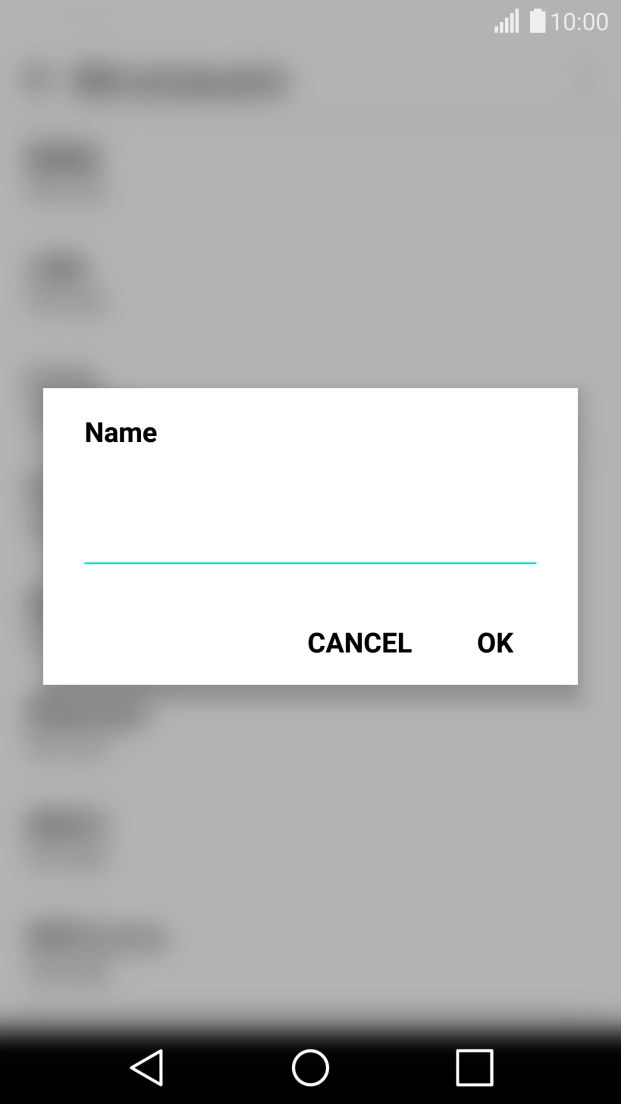
- Press Name.
- Key in Telstra MMS and press OK.
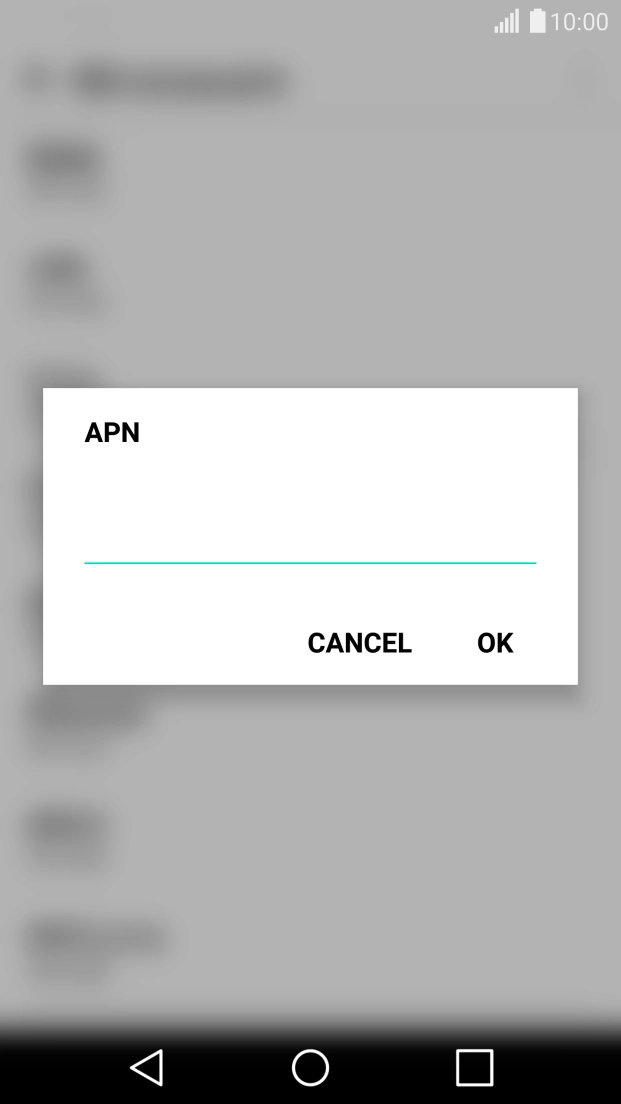
- Press APN.
- Key in telstra.mms and press OK.
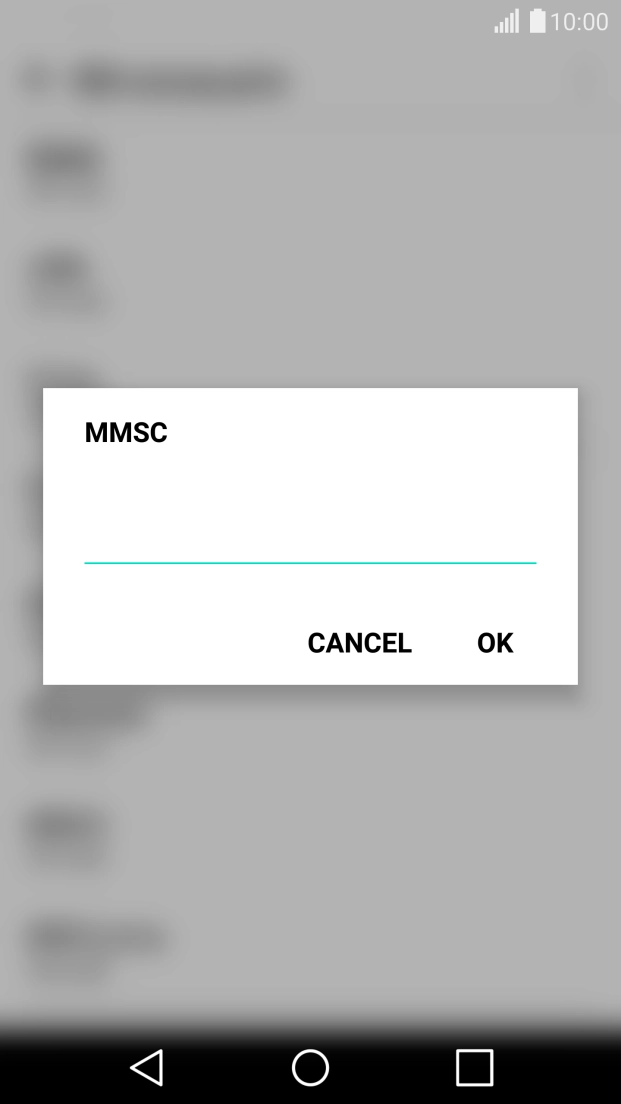
- Press MMSC.
- Key in http://mmsc.telstra.com:8002 and press OK.
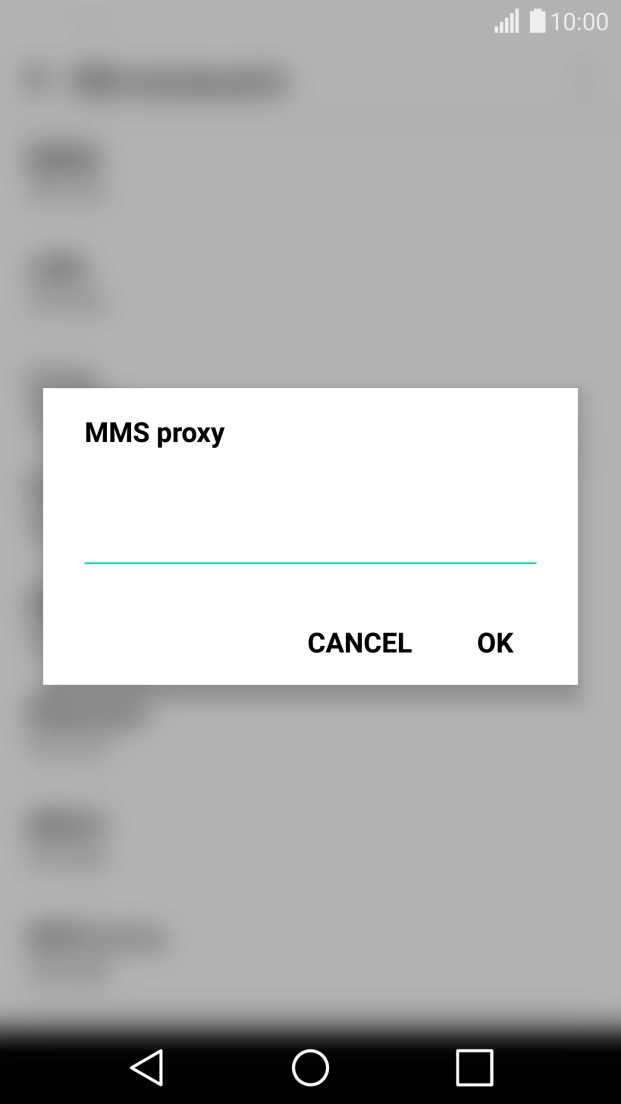
- Press MMS proxy.
- Key in 10.1.1.180 and press OK.
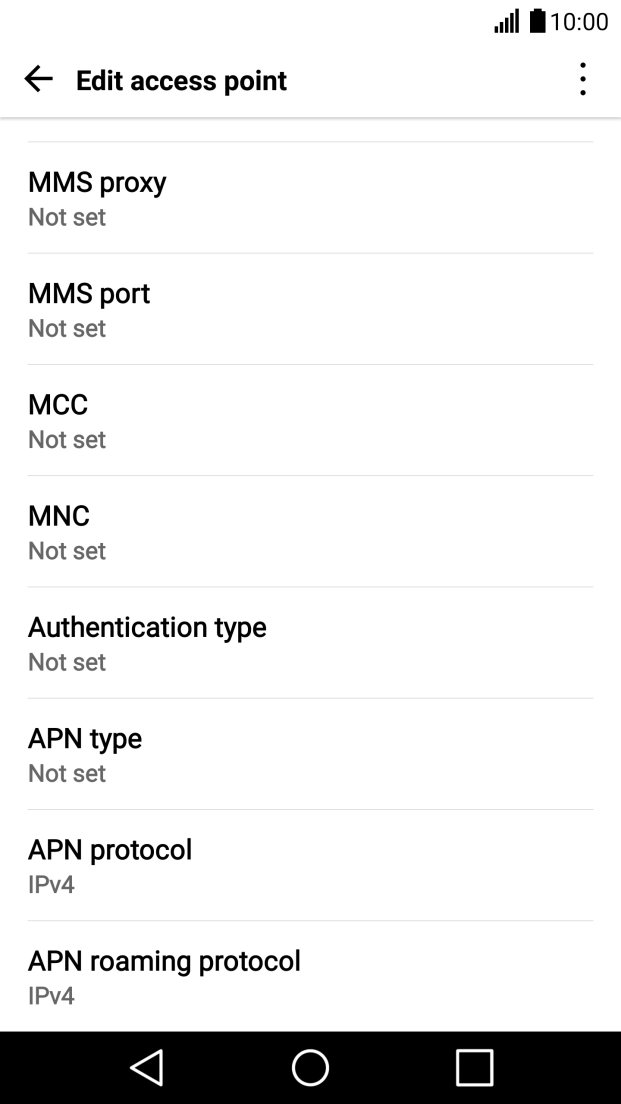
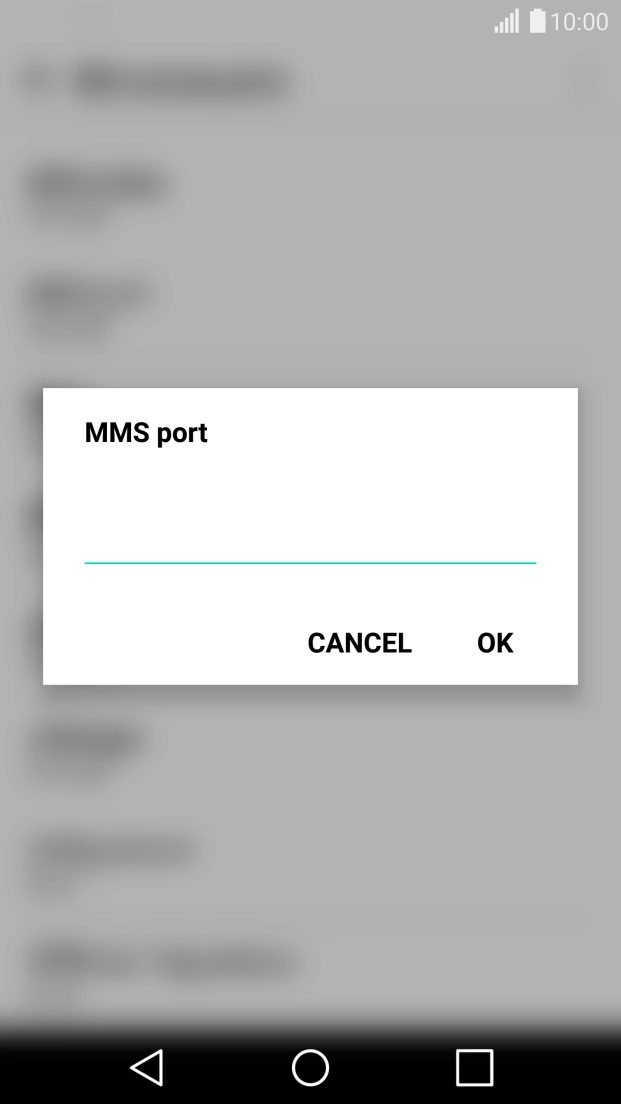
- Press MMS port.
- Key in 80 and press OK.
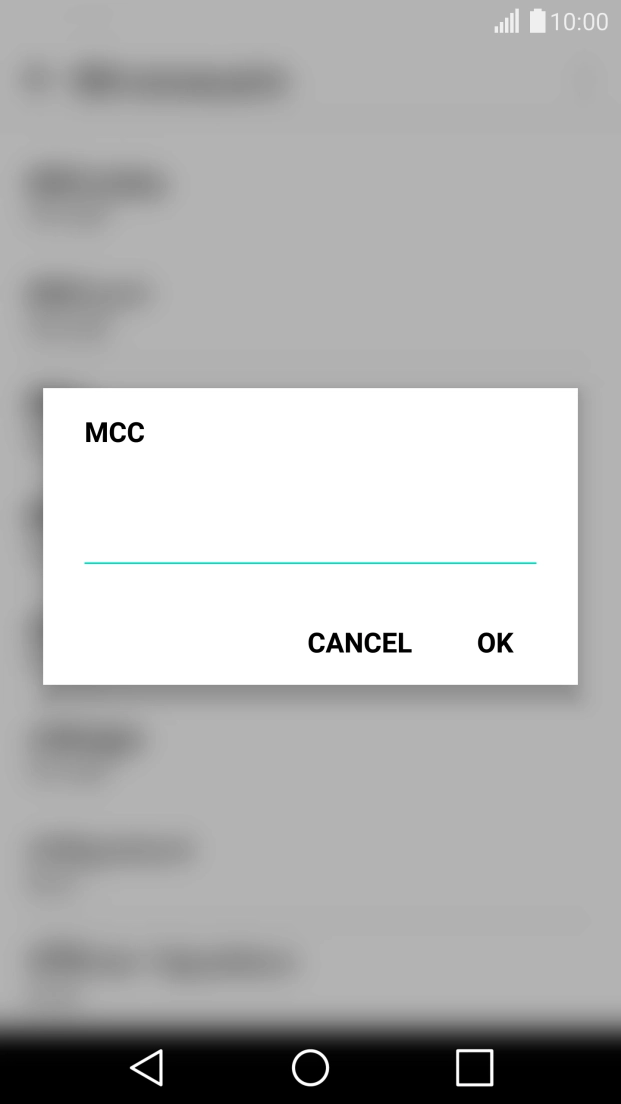
- Press MCC.
- Key in 505 and press OK.
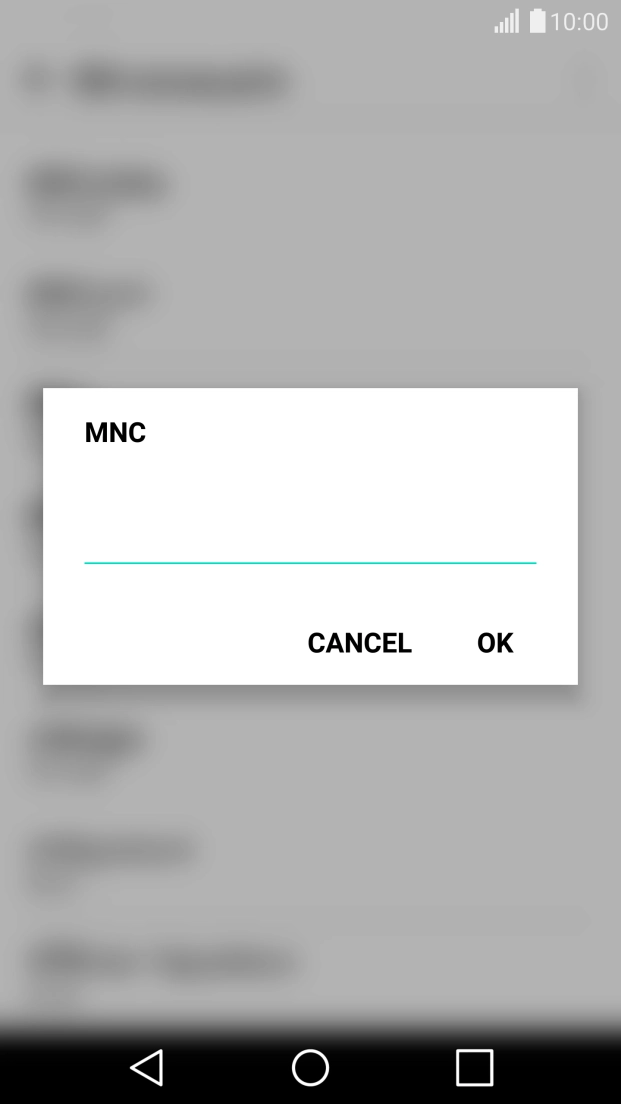
- Press MNC.
- Key in 01 and press OK.
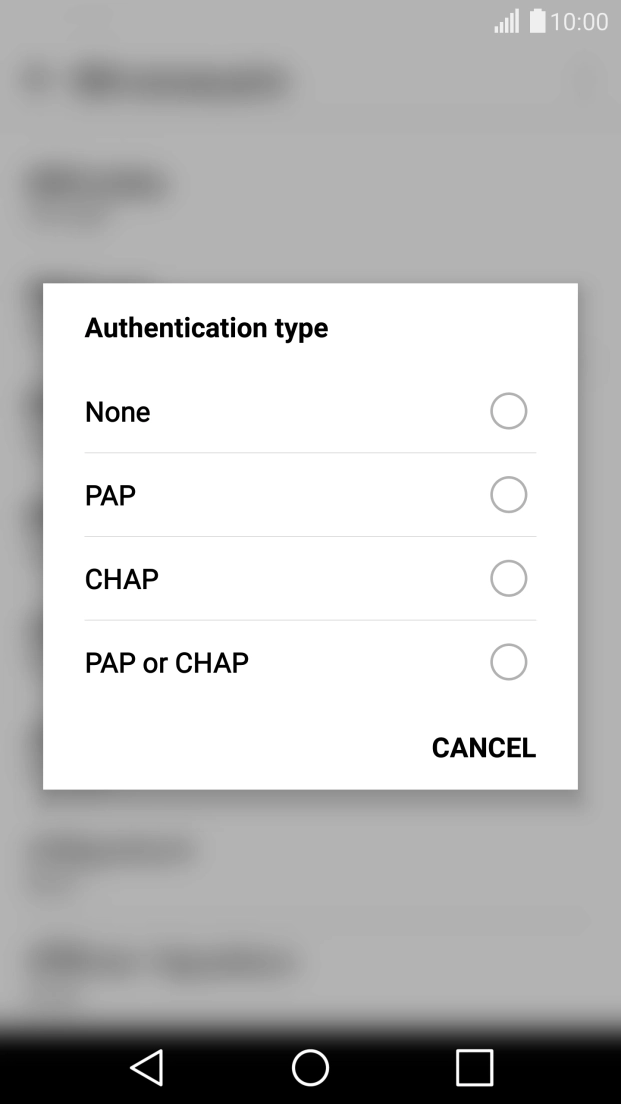
- Press Authentication type.
- Press None.
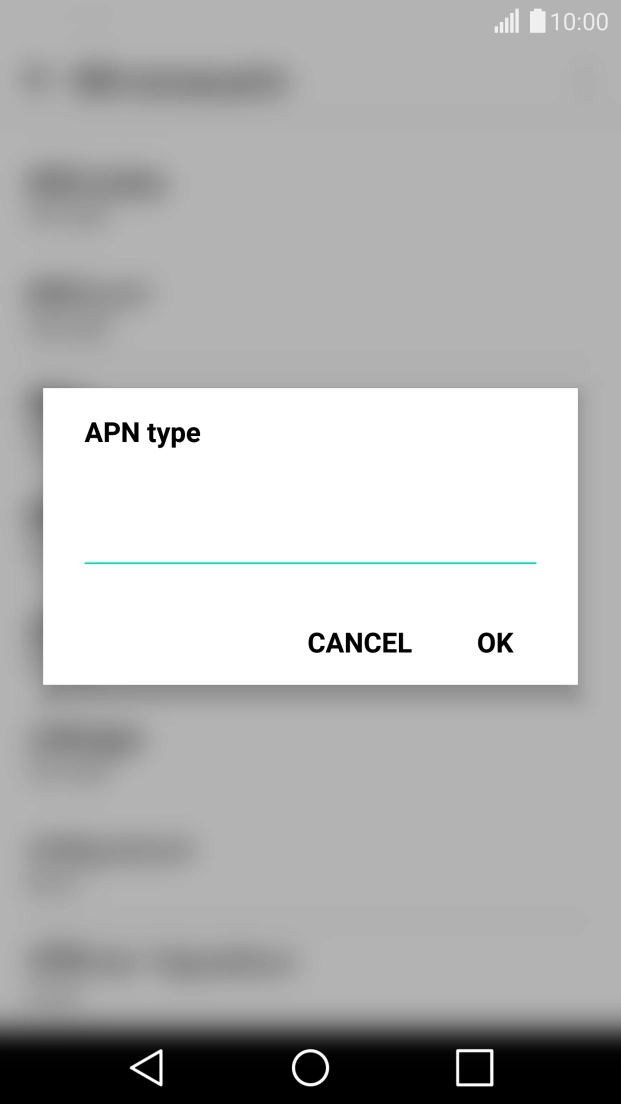
- Press APN type.
- Key in mms and press OK.
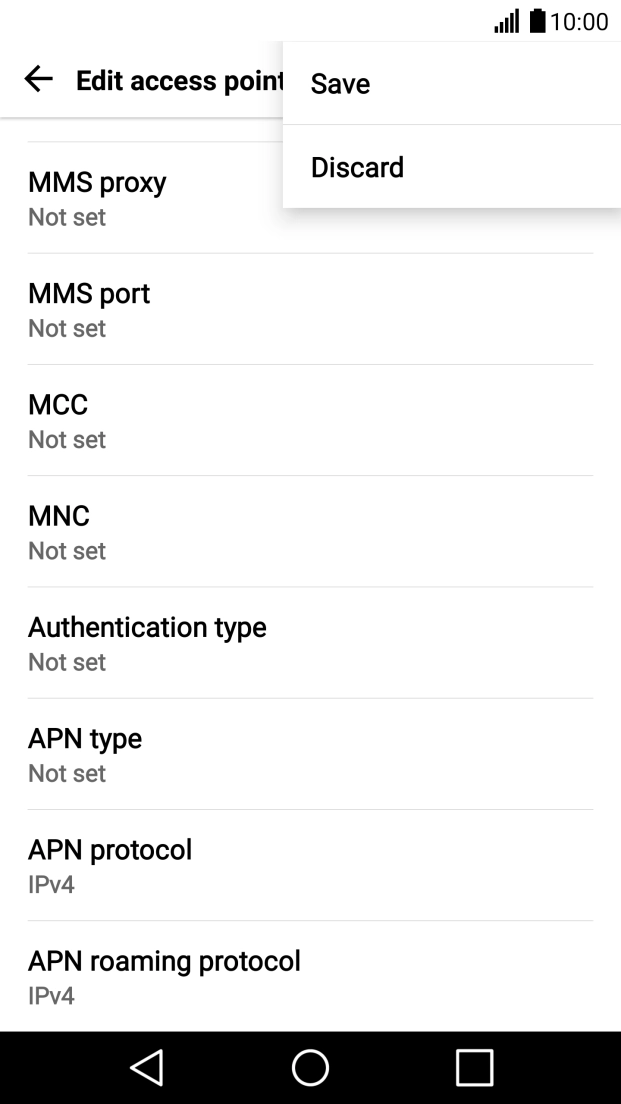
- Press the menu icon.
- Press Save.
- Press the Home key to return to the home screen.
To send a picture message, it needs to be written and sent correctly.
Solution: Write and send picture messages
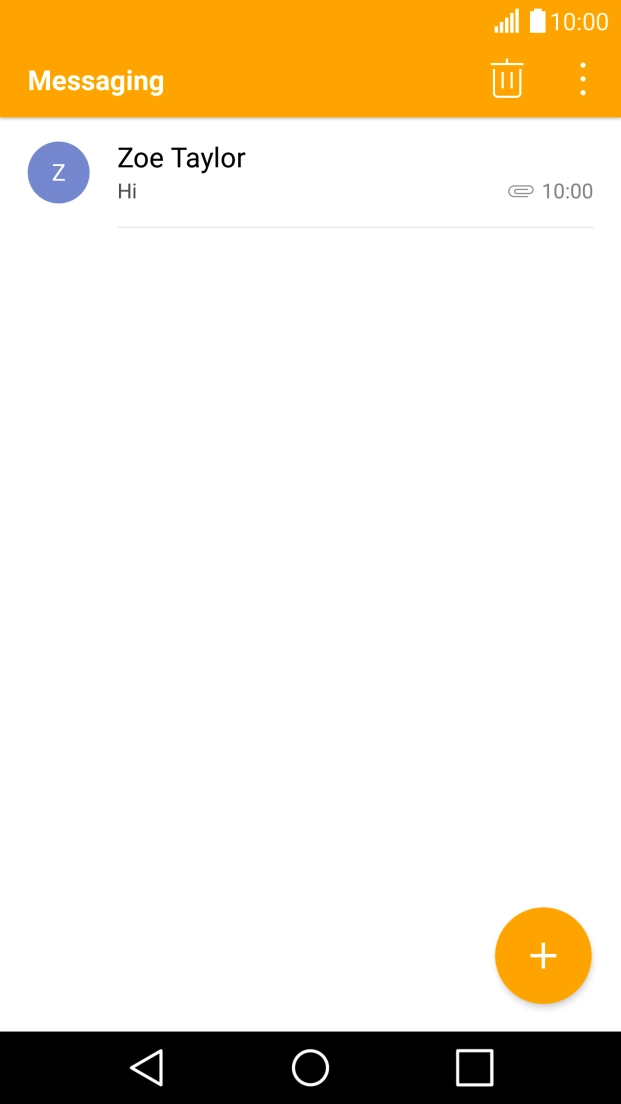
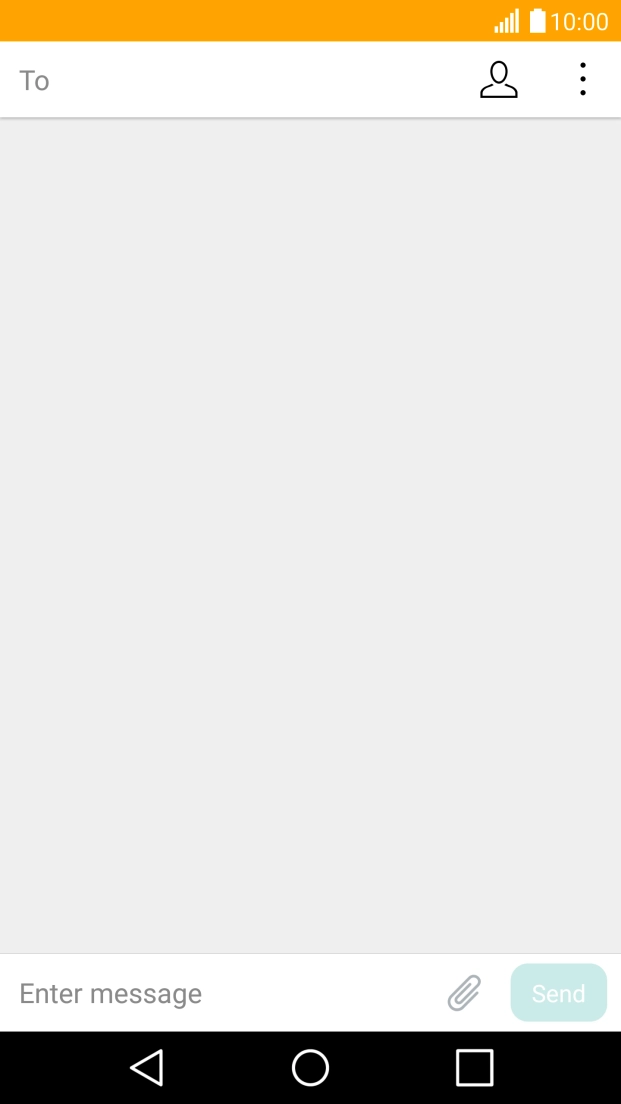
- Press the message icon.
- Press the new message icon.
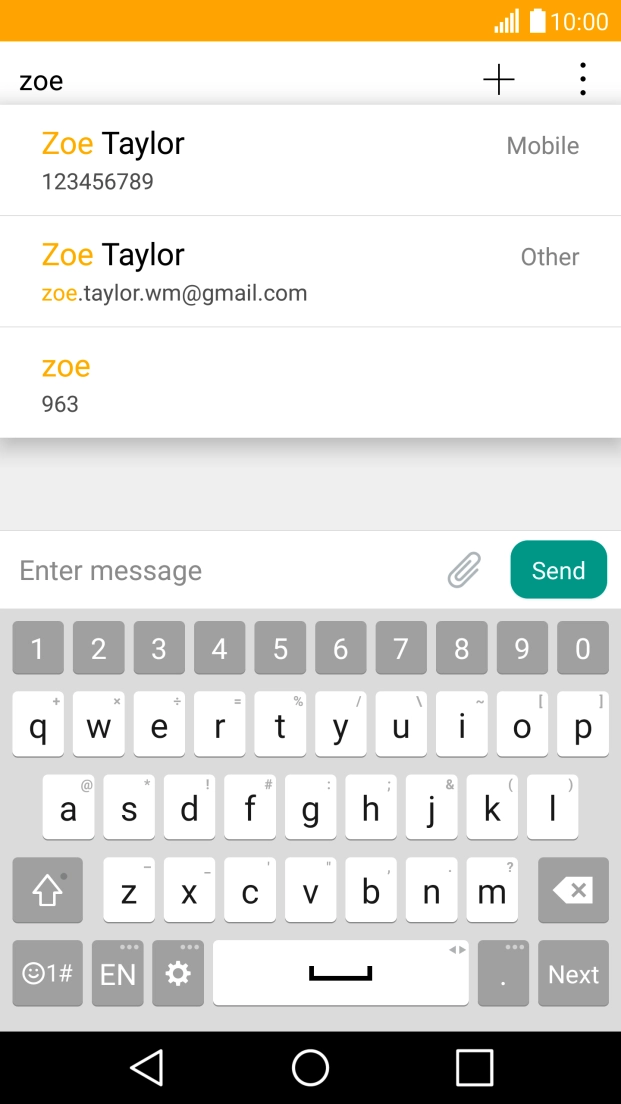
- Press the search field and key in the first letters of the recipient's name.
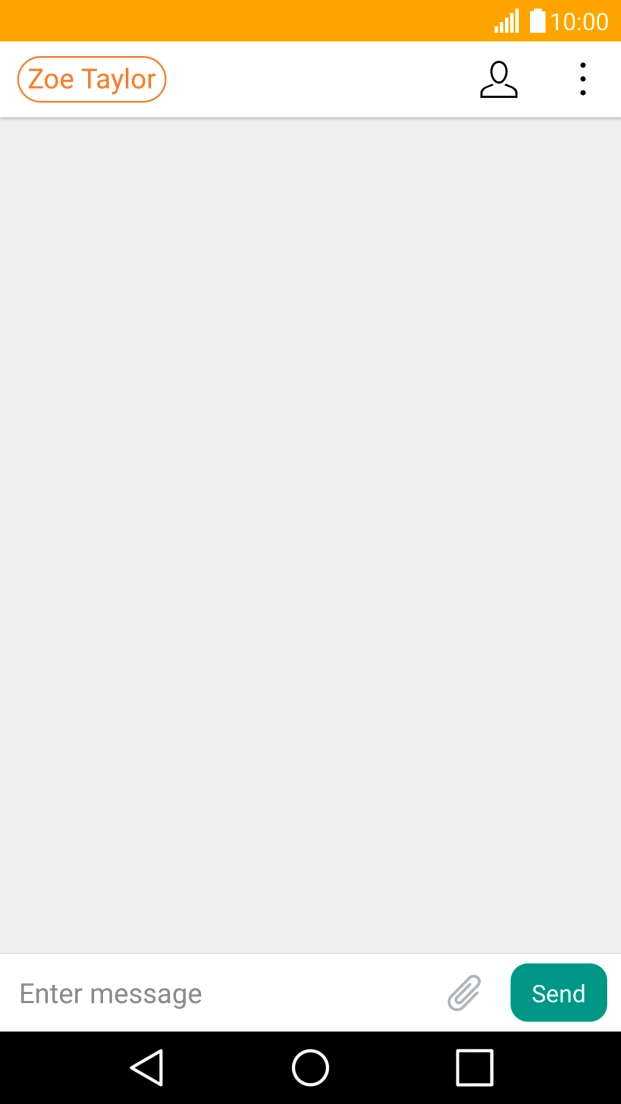
- Press the required contact.
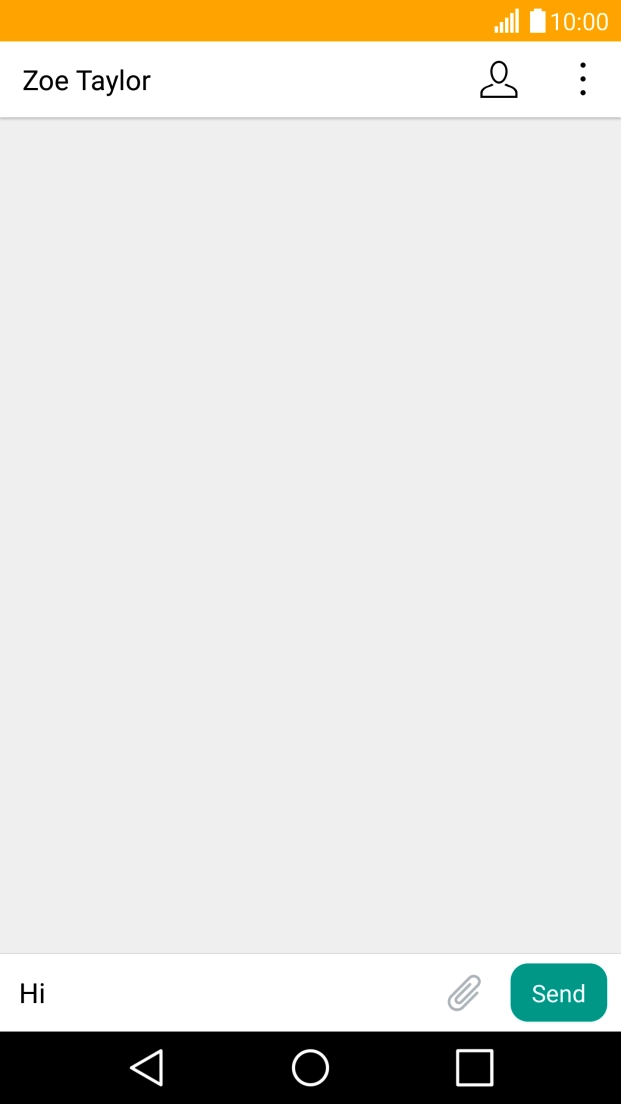
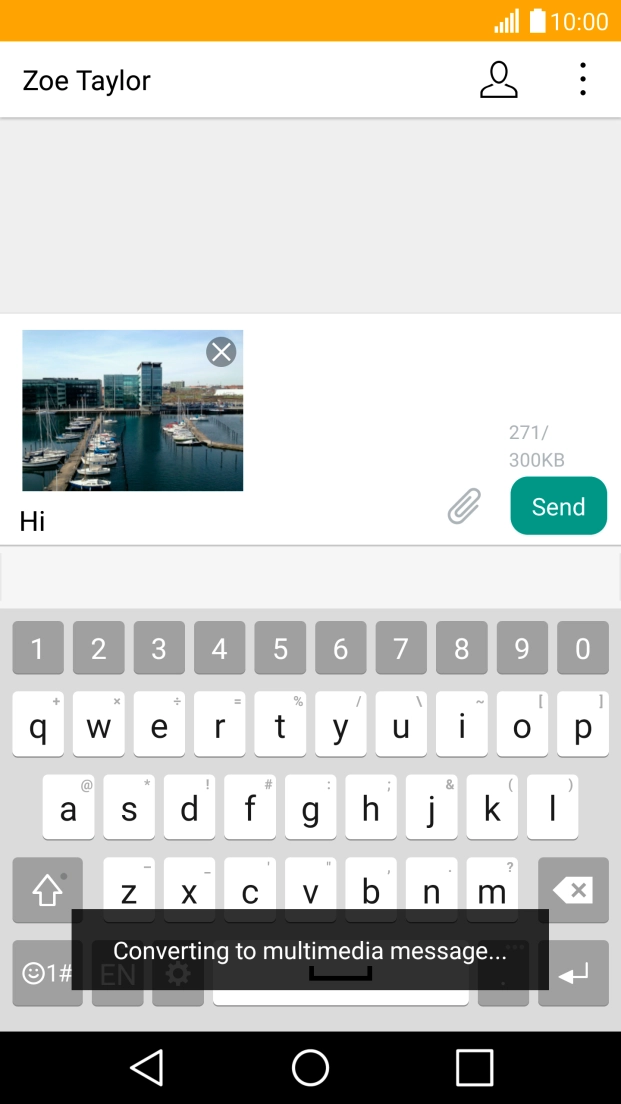
- Press the text input field and write the text for your picture message.
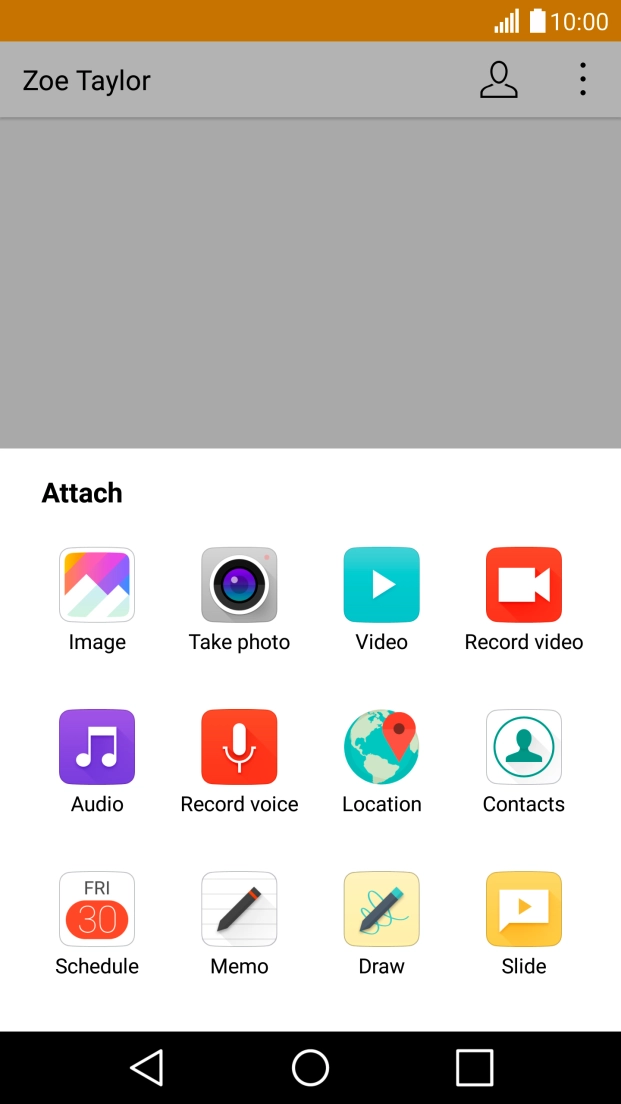
- Press the attachment icon.
- Press Image.
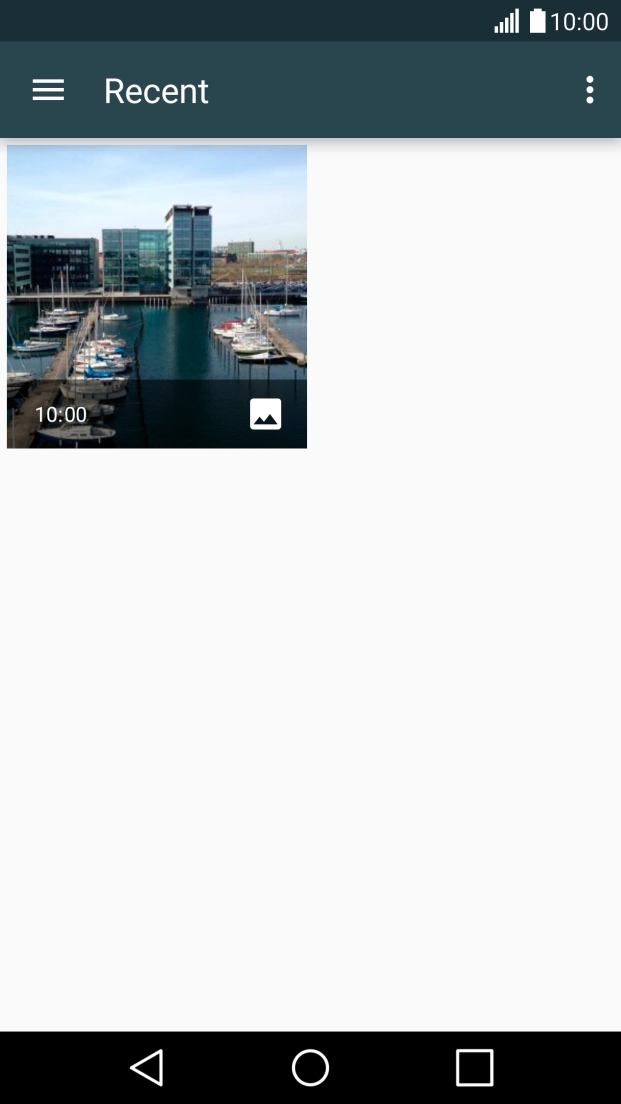
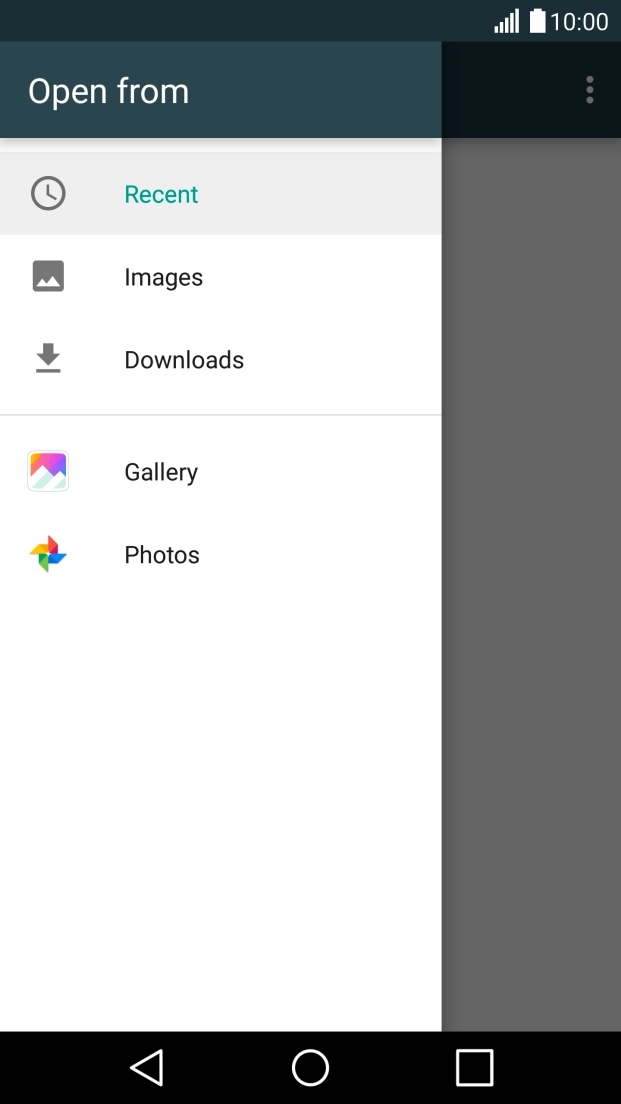
- Slide your finger right starting from the left side of the screen.
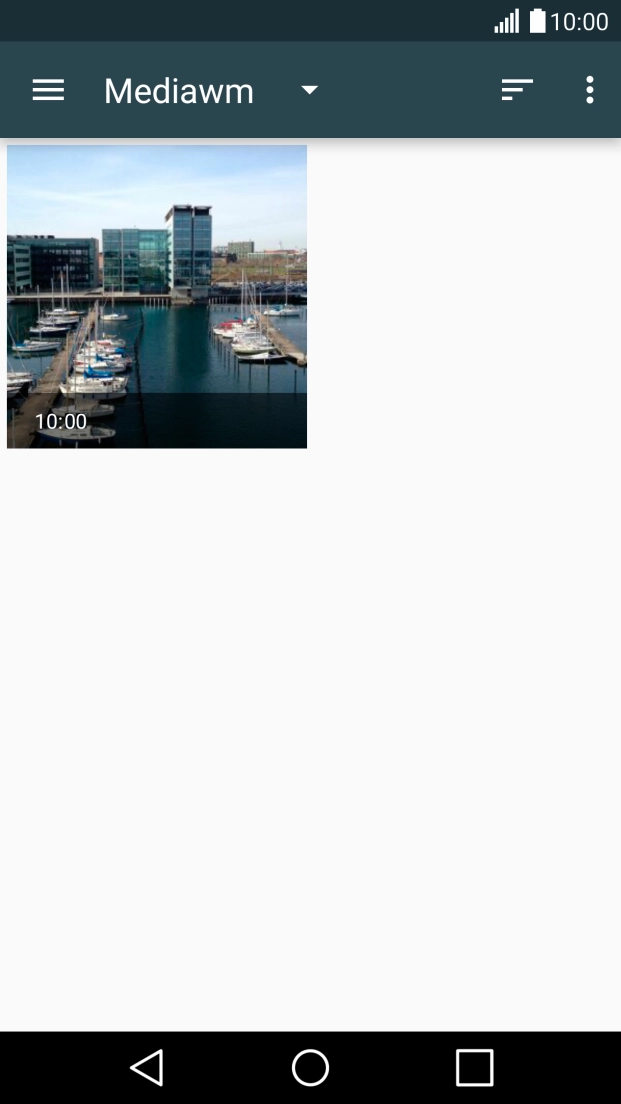
- Press Images and go to the required folder.
- Press the required picture.
- Press the attachment icon.
- Press Video.
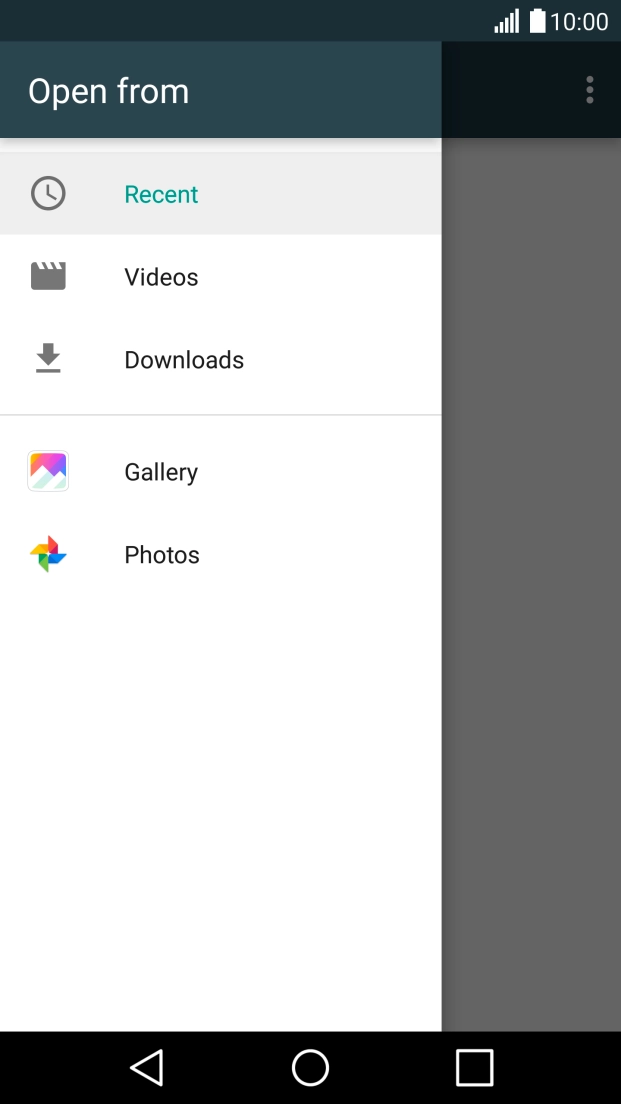
- Slide your finger right starting from the left side of the screen.
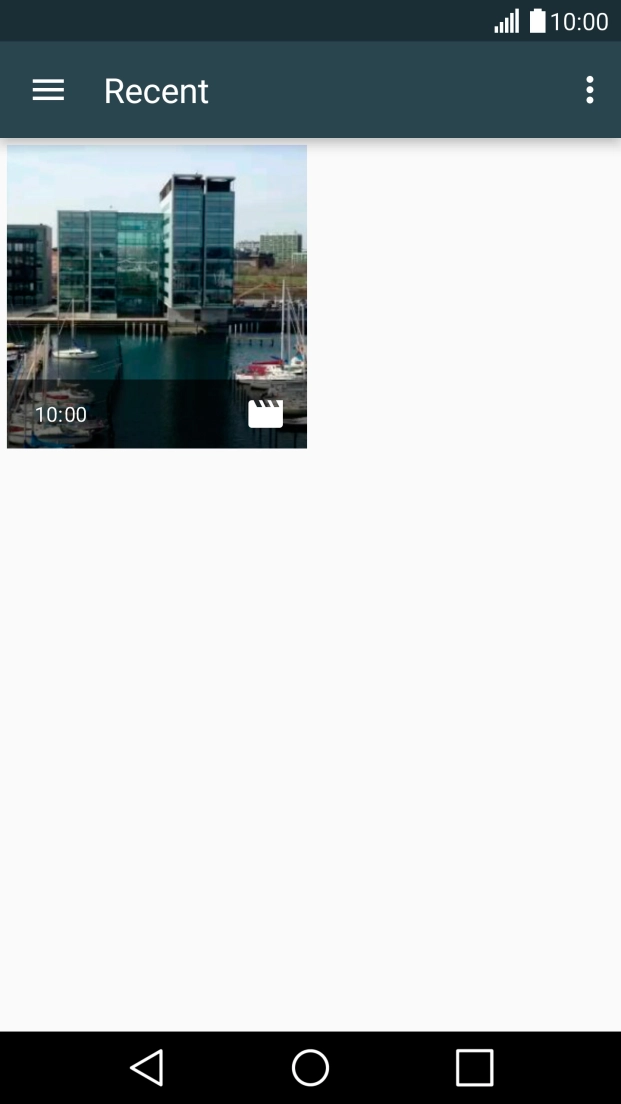
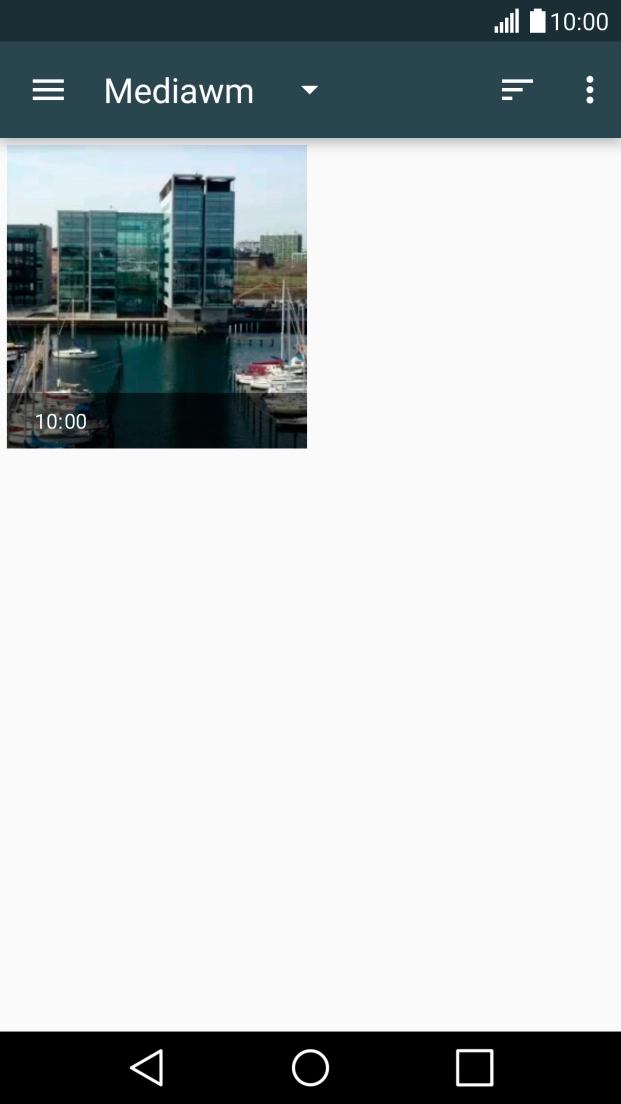
- Press Videos and go to the required folder.
- Press the required video clip.
- Press the attachment icon.
- Press Audio.
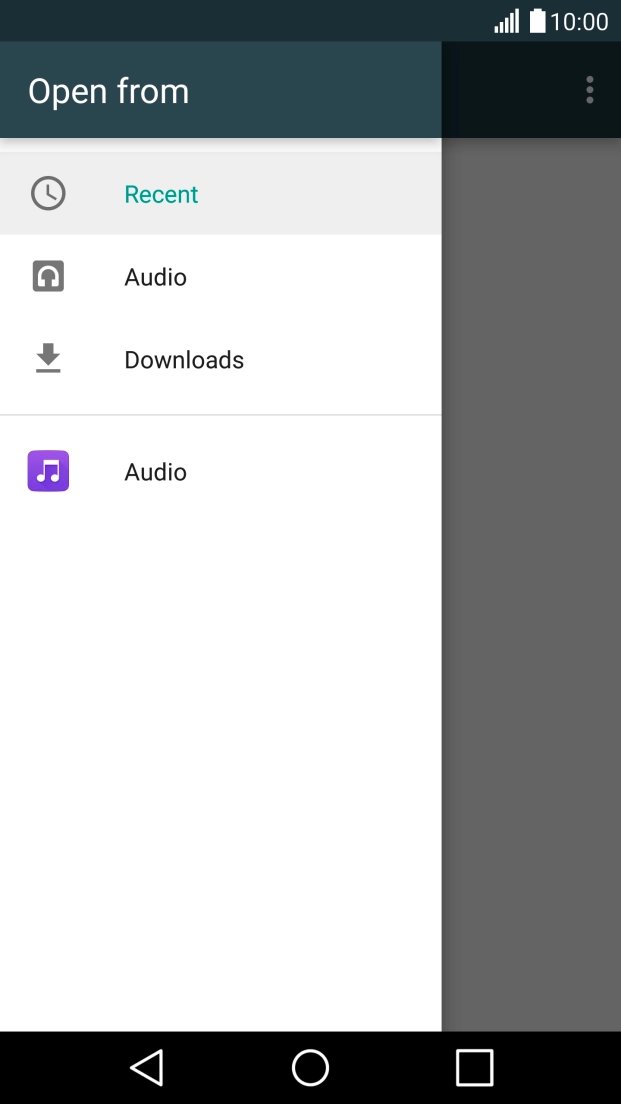
- Slide your finger right starting from the left side of the screen.
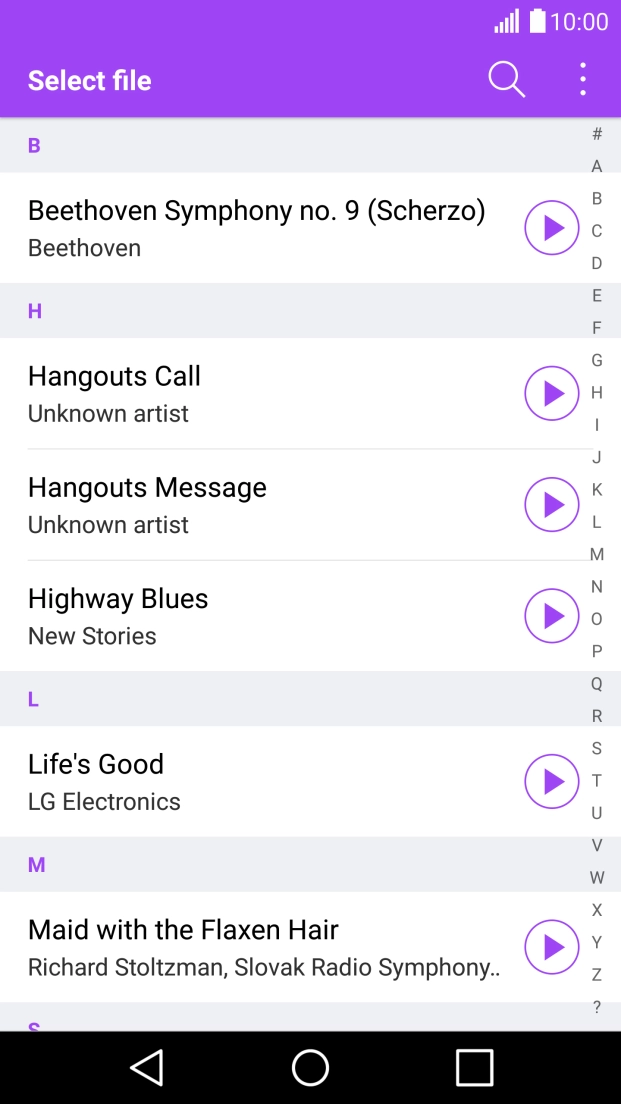
- Press Audio and go to the required folder.
- Press the required audio file.
- Press Send when you've written your picture message.
- Press the Home key to return to the home screen.
To send and receive picture messages, mobile data needs to be turned on.
Solution: Turn mobile data on or off
1. Turn mobile data on or off
Slide your finger downwards starting from the top of the screen.
- Slide your finger downwards starting from the top of the screen.
- Press the settings icon.
- Press Networks.
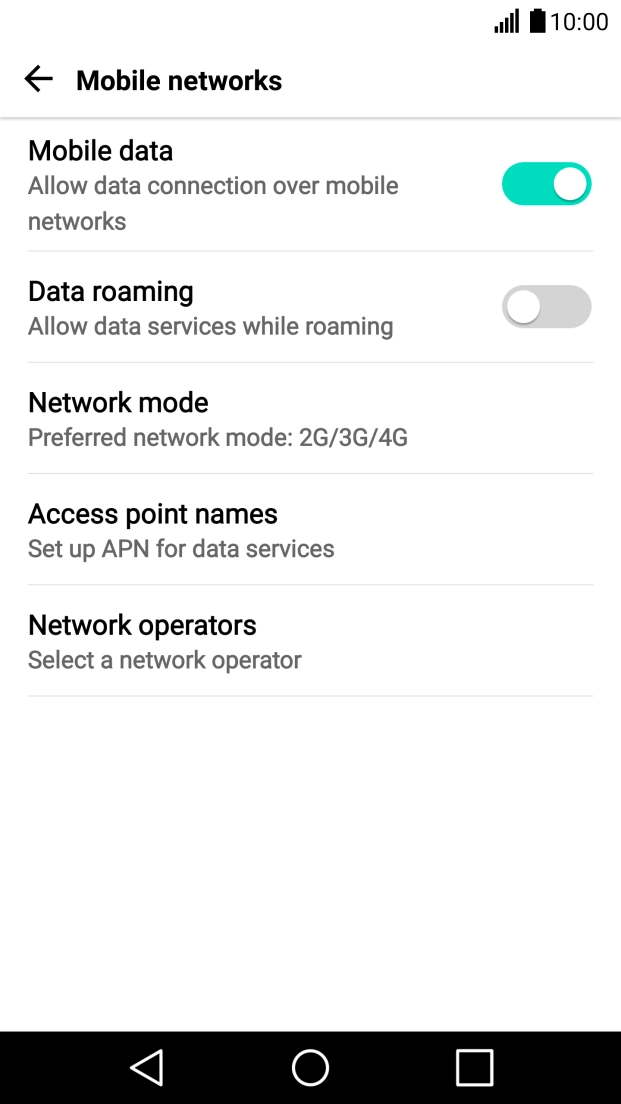
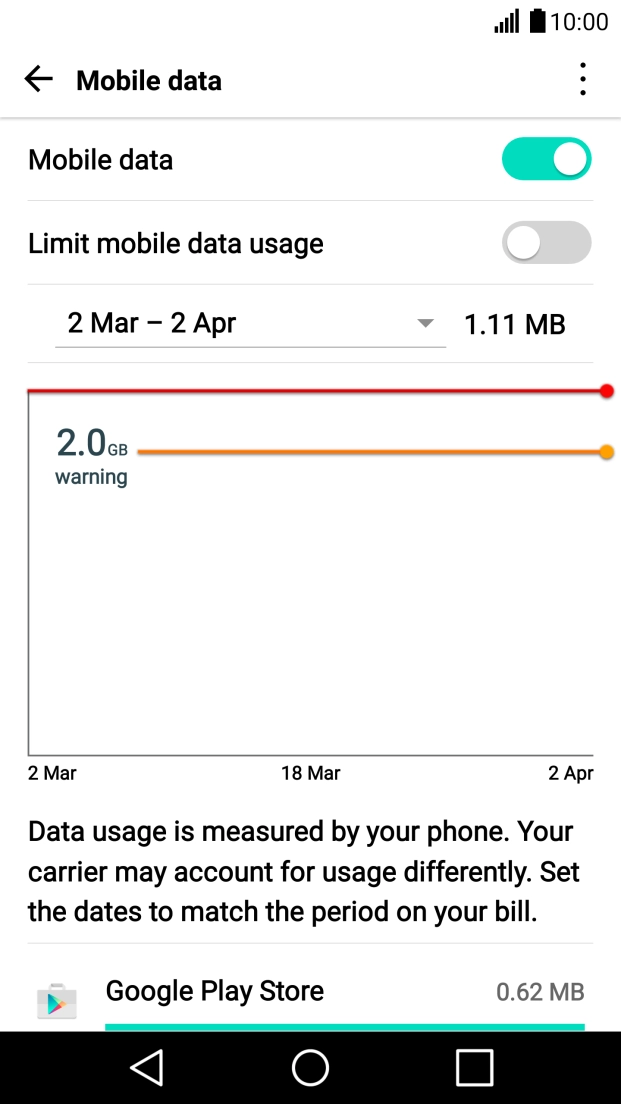
- Press Mobile data.
- Press the indicator next to "Mobile data" to turn the function on or off.
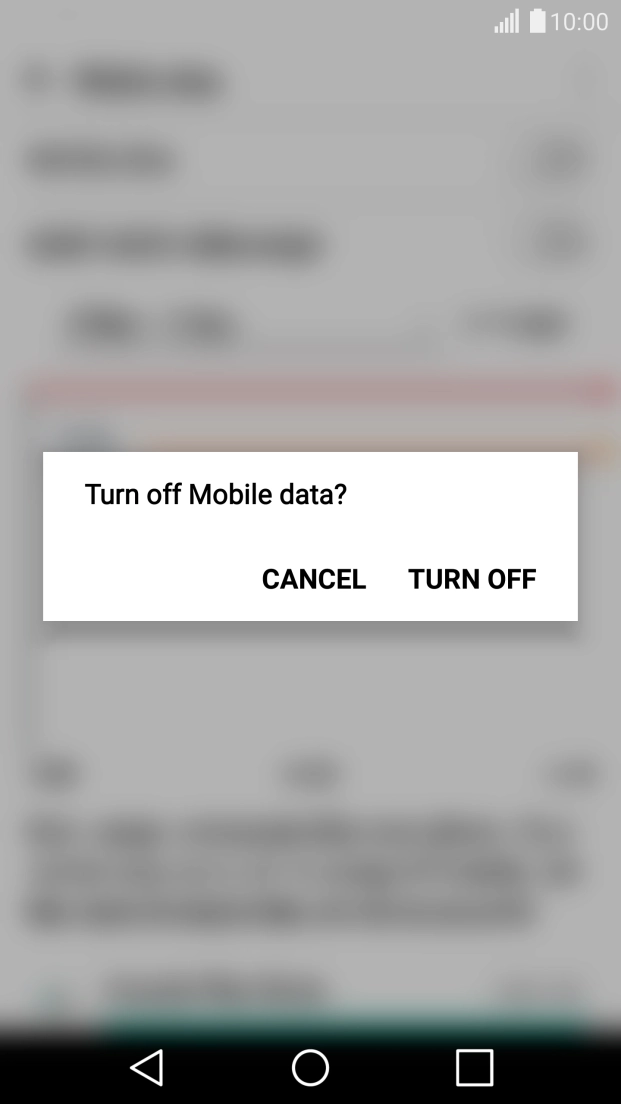
- If you turn off mobile data, press TURN OFF.
- Press the Home key to return to the home screen.
To send and receive picture messages when abroad, data roaming needs to be turned on.
Solution: Turn data roaming on or off
1. Find "Mobile networks"
Slide your finger downwards starting from the top of the screen.
- Slide your finger downwards starting from the top of the screen.
- Press the settings icon.
- Press Networks.
- Press More.
- Press Mobile networks.
- Press the indicator next to "Data roaming" to turn the function on or off.
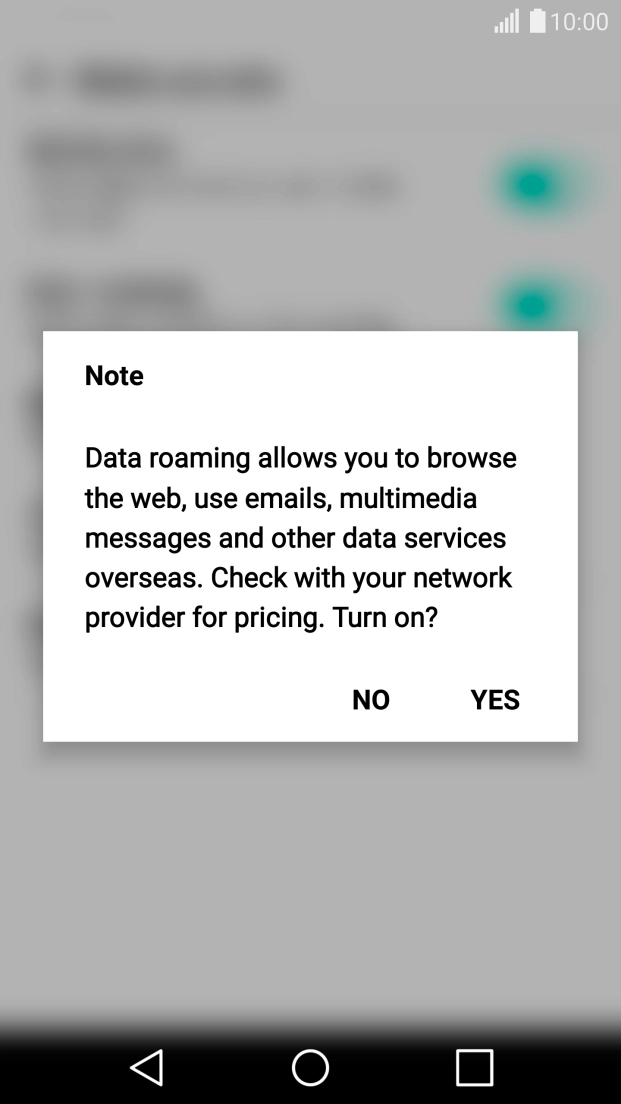
- If you turn on data roaming, press YES.
- Press the Home key to return to the home screen.
If you're having problems sending picture messages to a specific number, the error might be at the receiving end.
Solution: Try sending a picture message to another number.