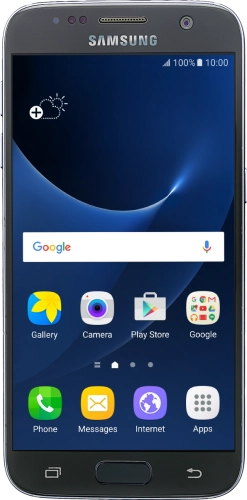
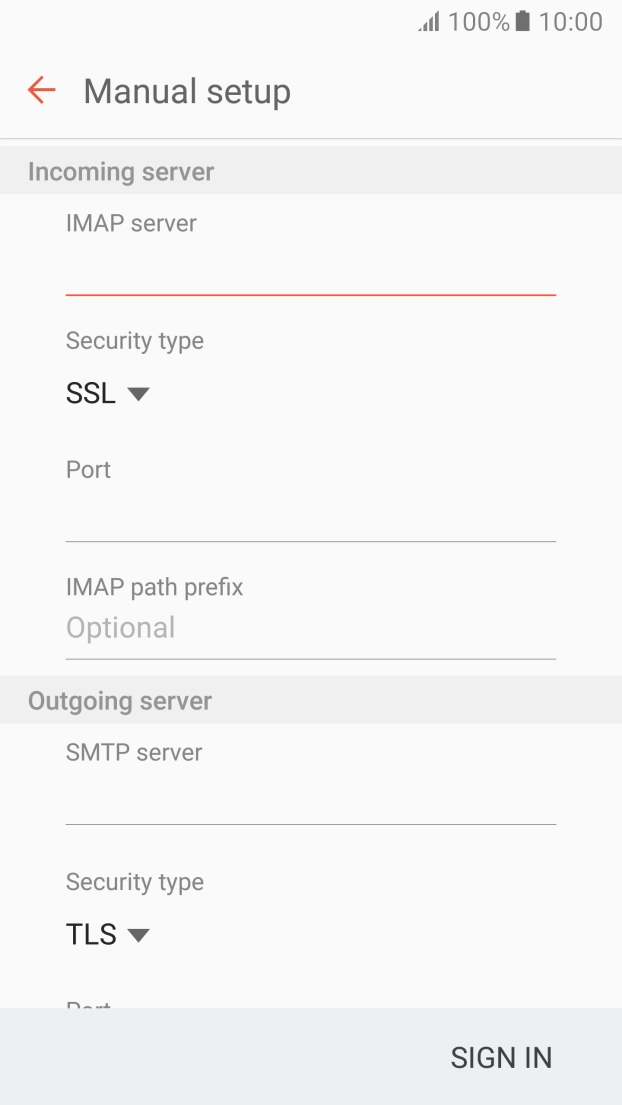
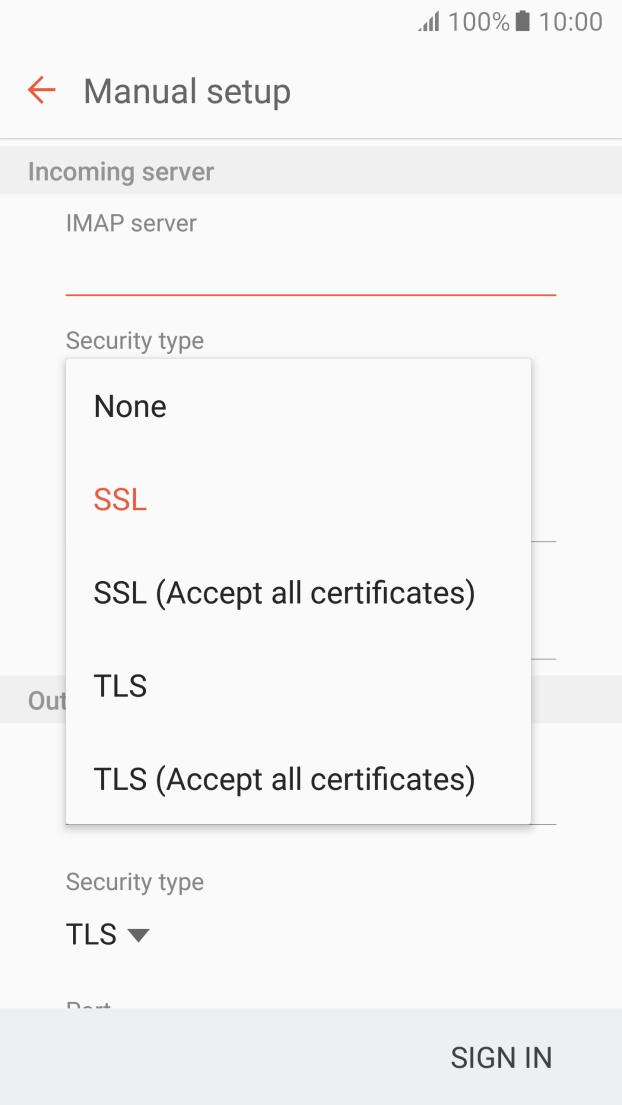
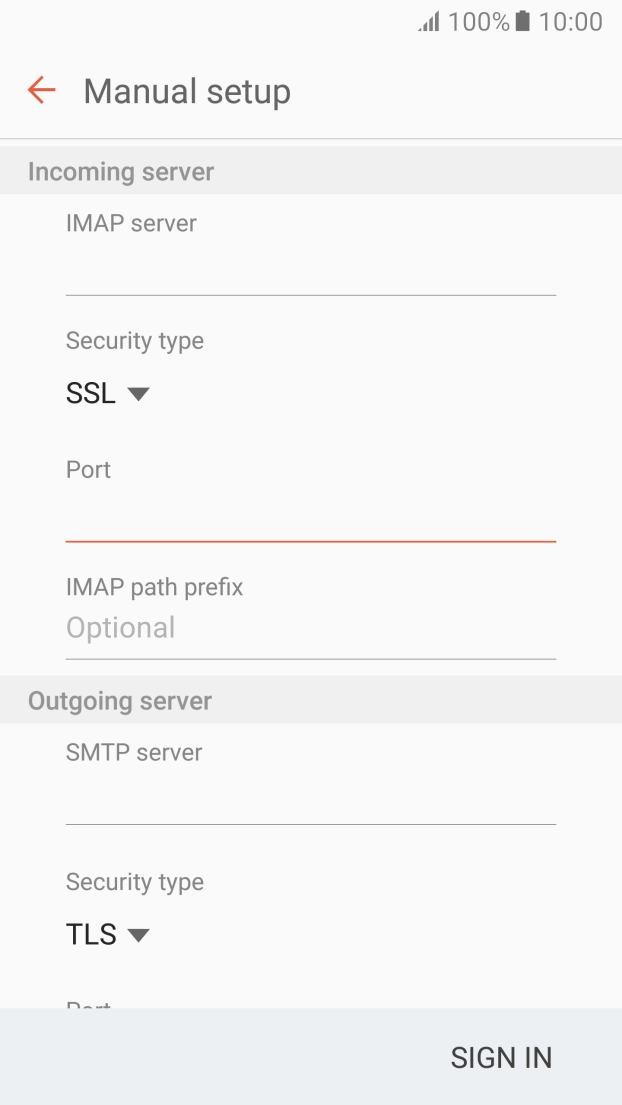
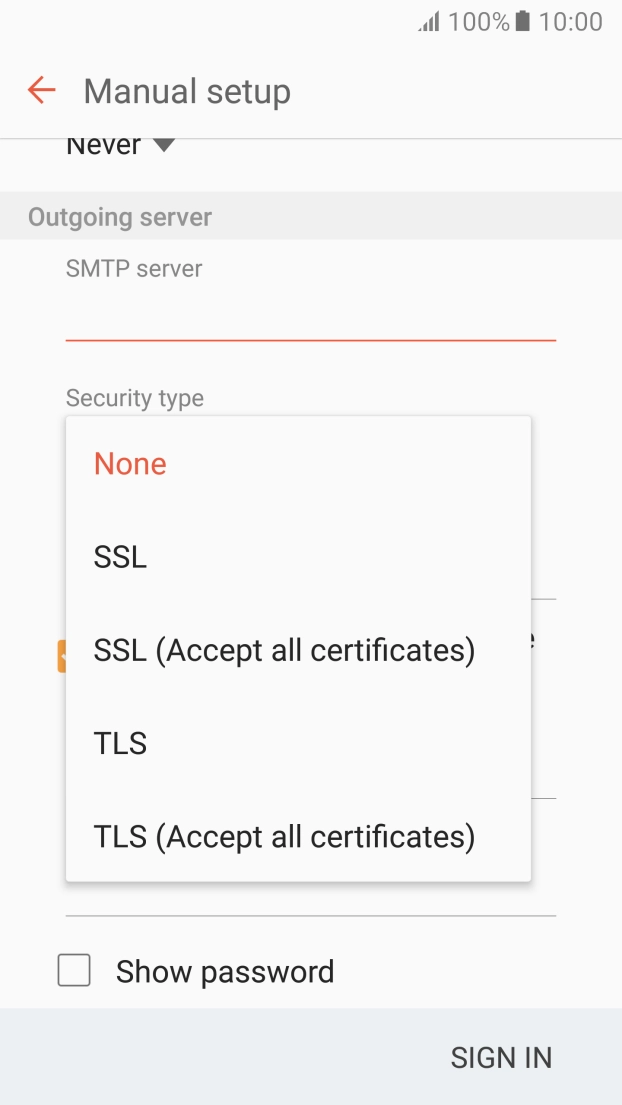
To send and receive email using Exchange, your phone needs to be correctly set up for Exchange email.
Solution: Set up your phone for Exchange email
1. Find "Accounts"
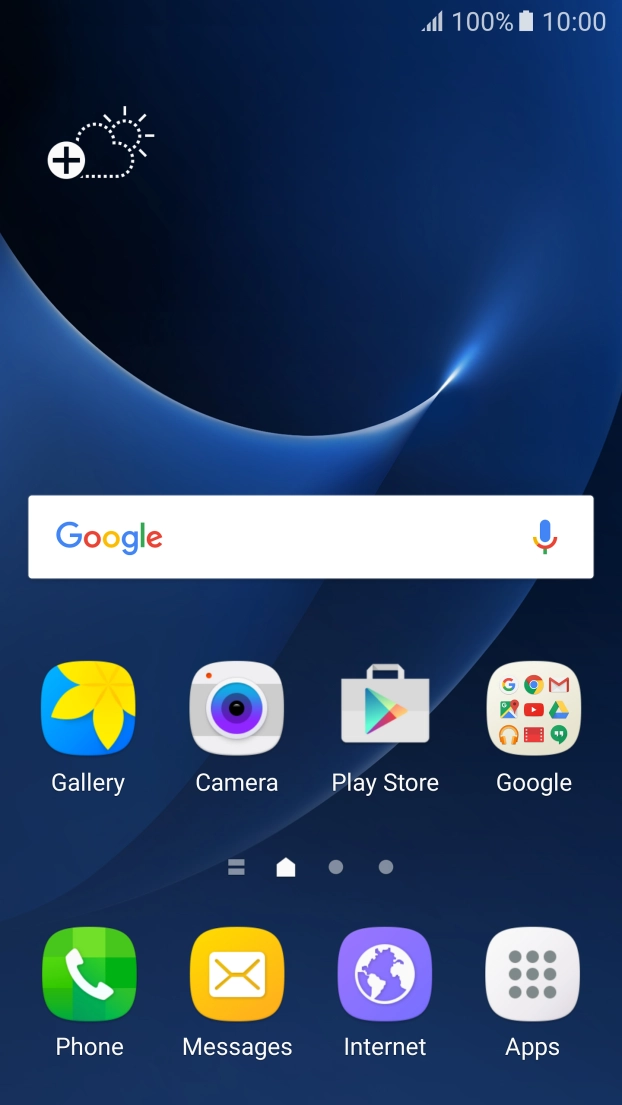
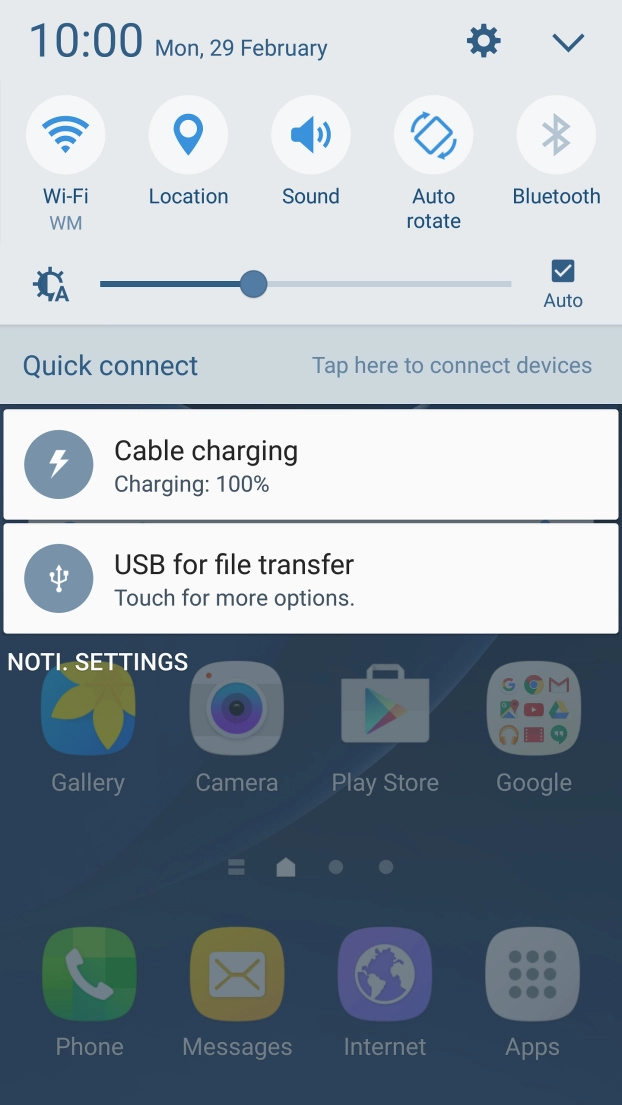
Slide your finger downwards starting from the top of the screen.
Slide your finger downwards starting from the top of the screen.
Press the settings icon.
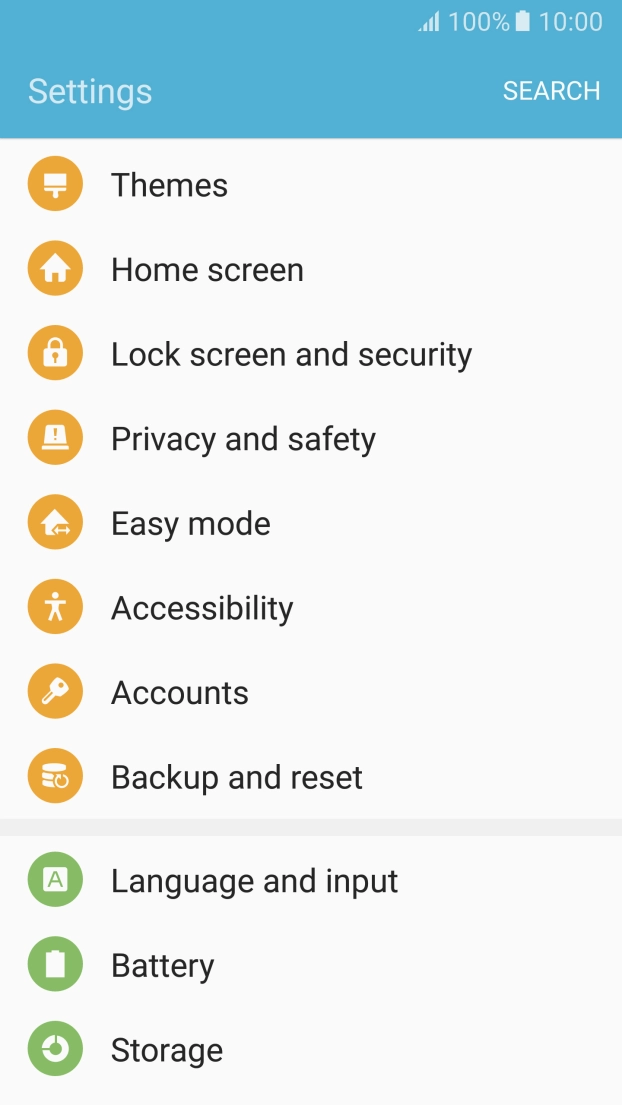
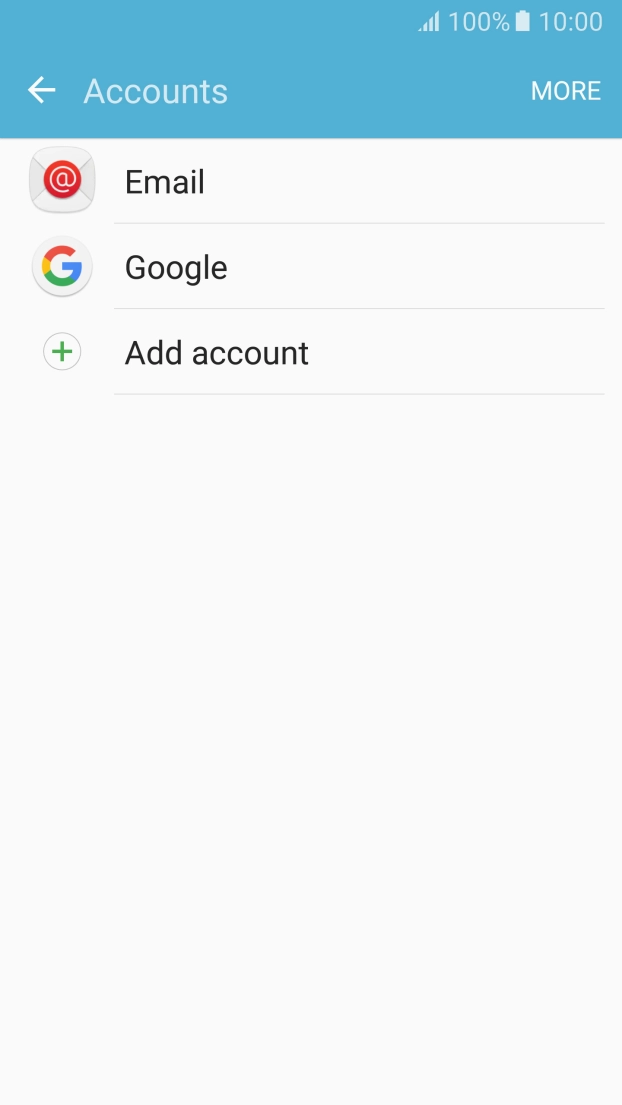
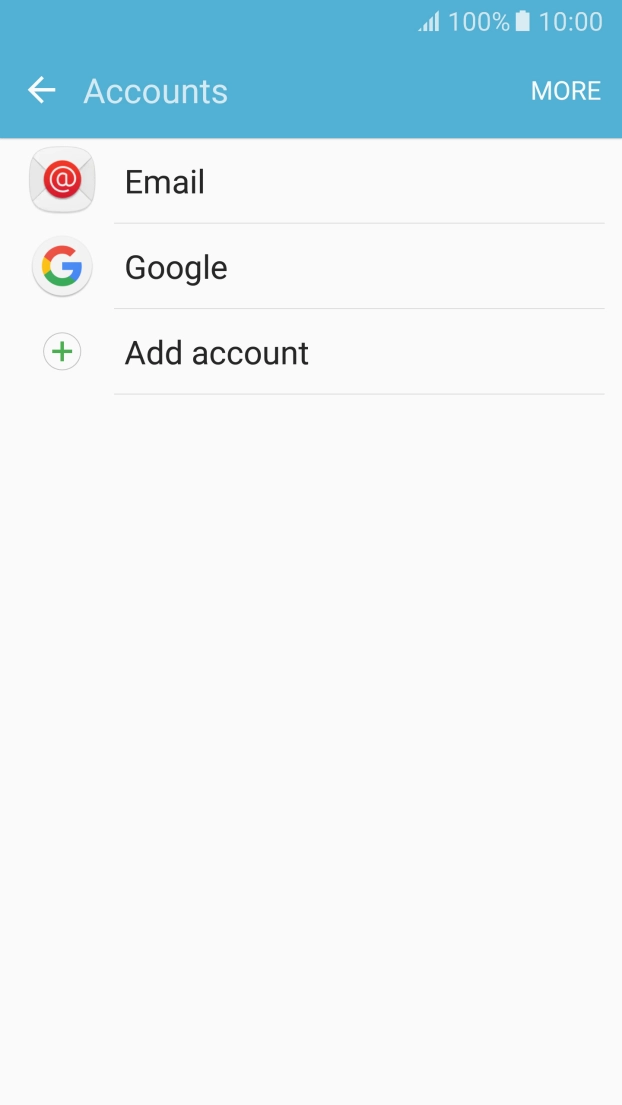
Press Accounts.
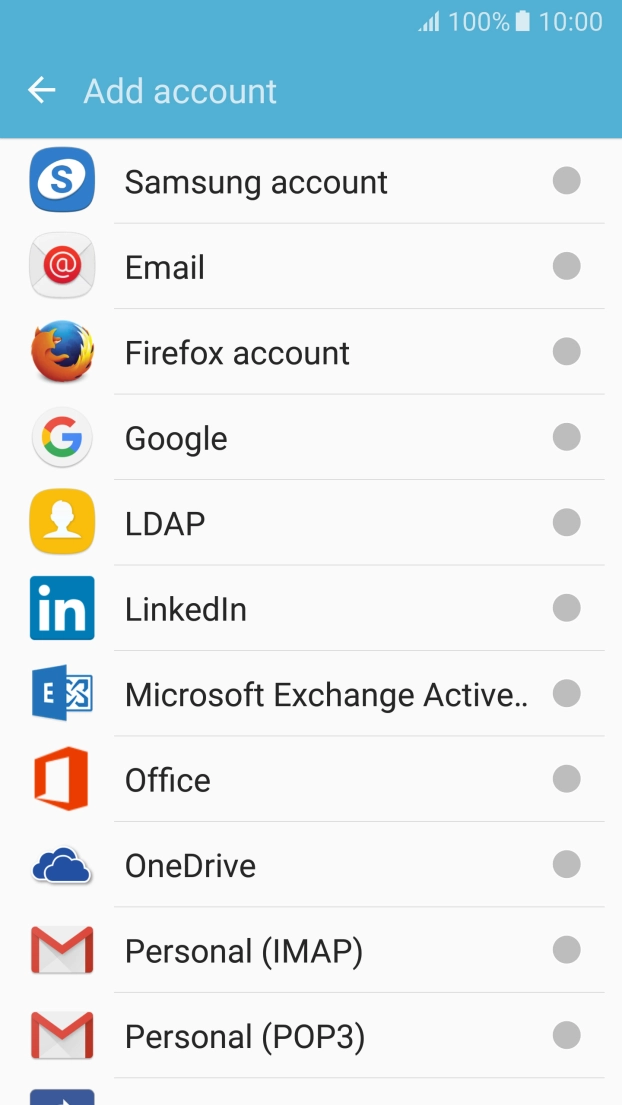
Press Add account.
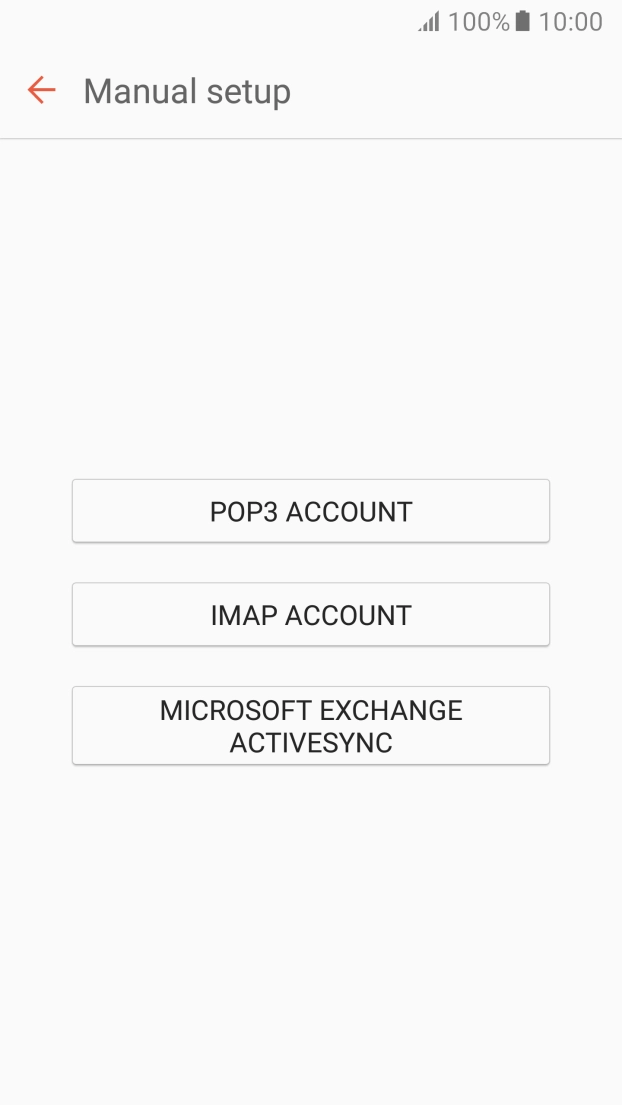
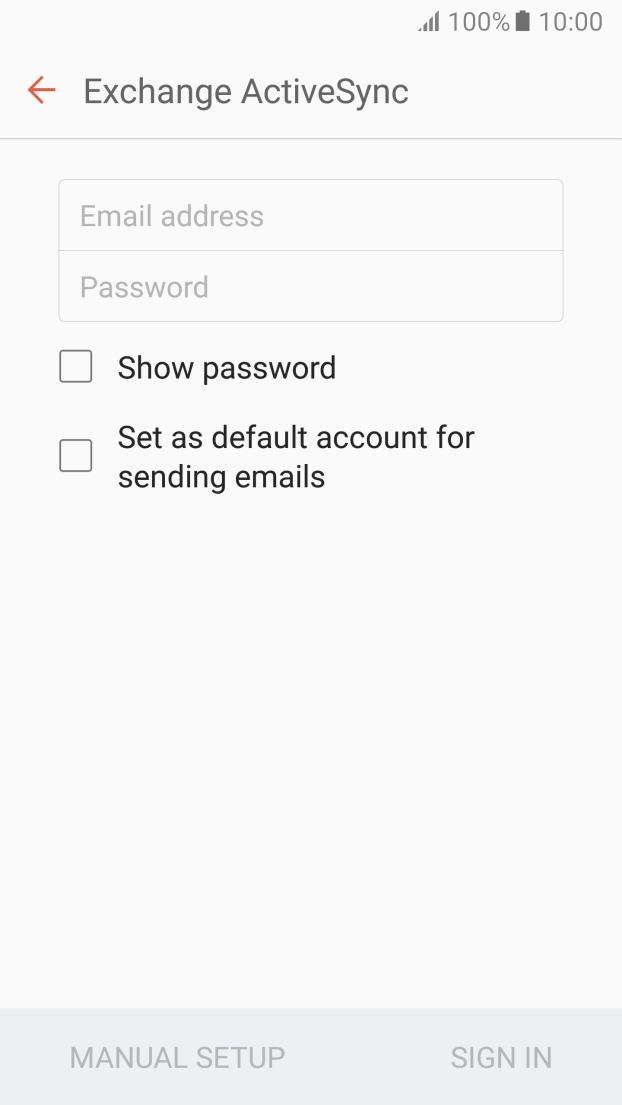
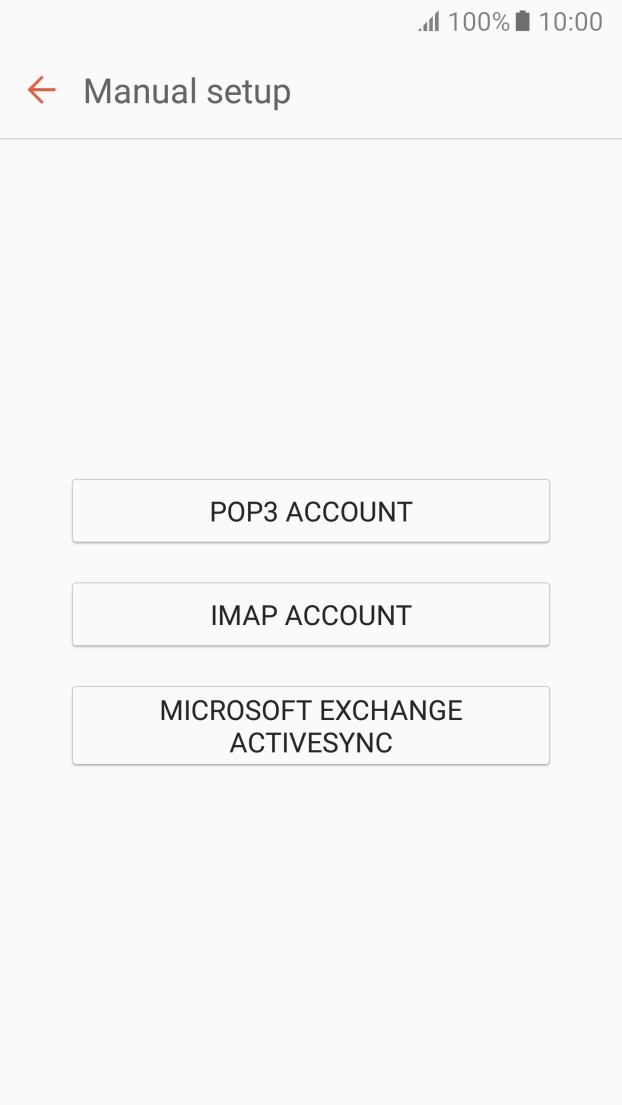
Press Microsoft Exchange ActiveSync.
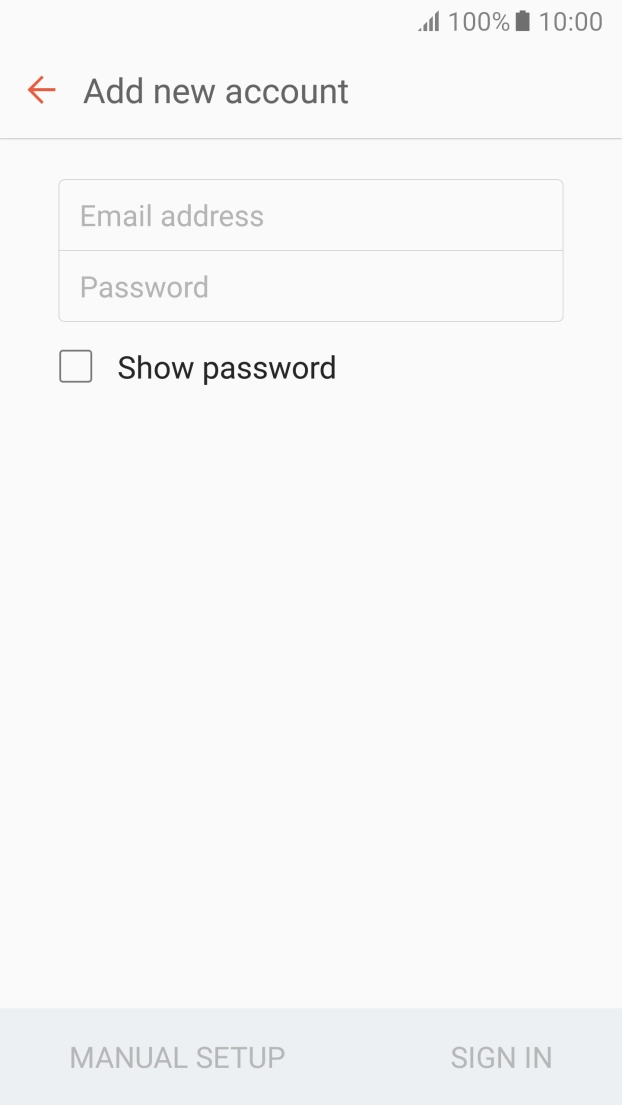
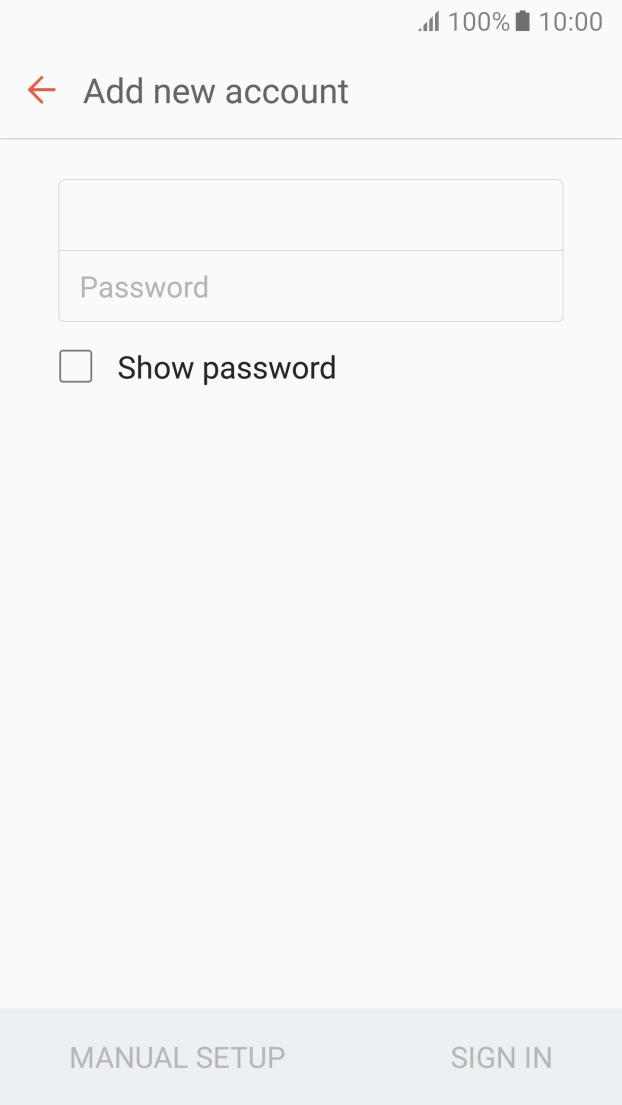
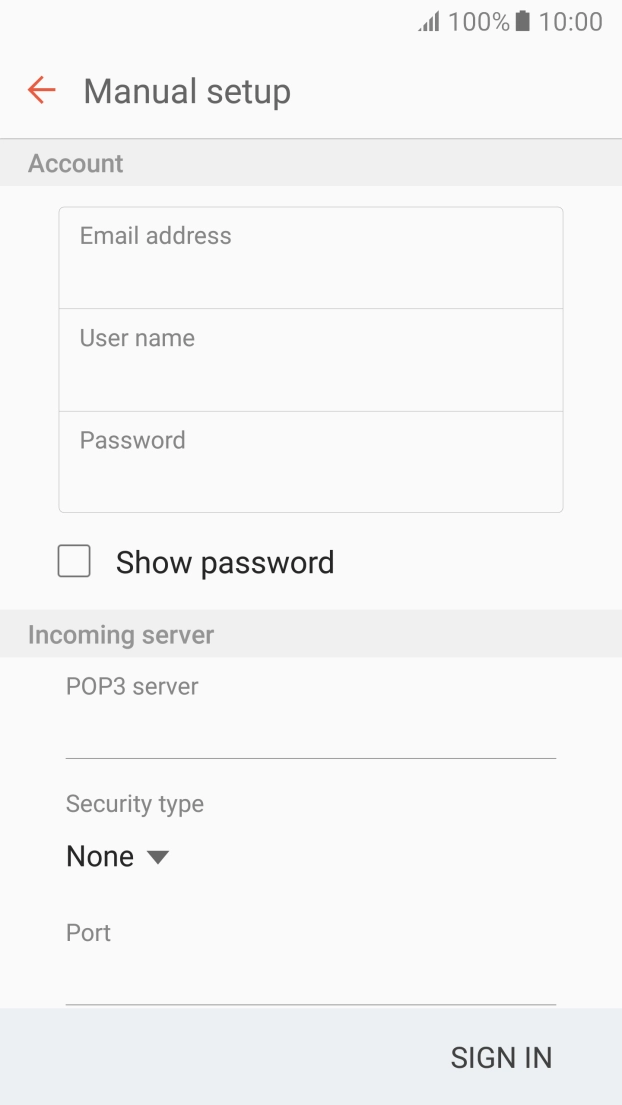
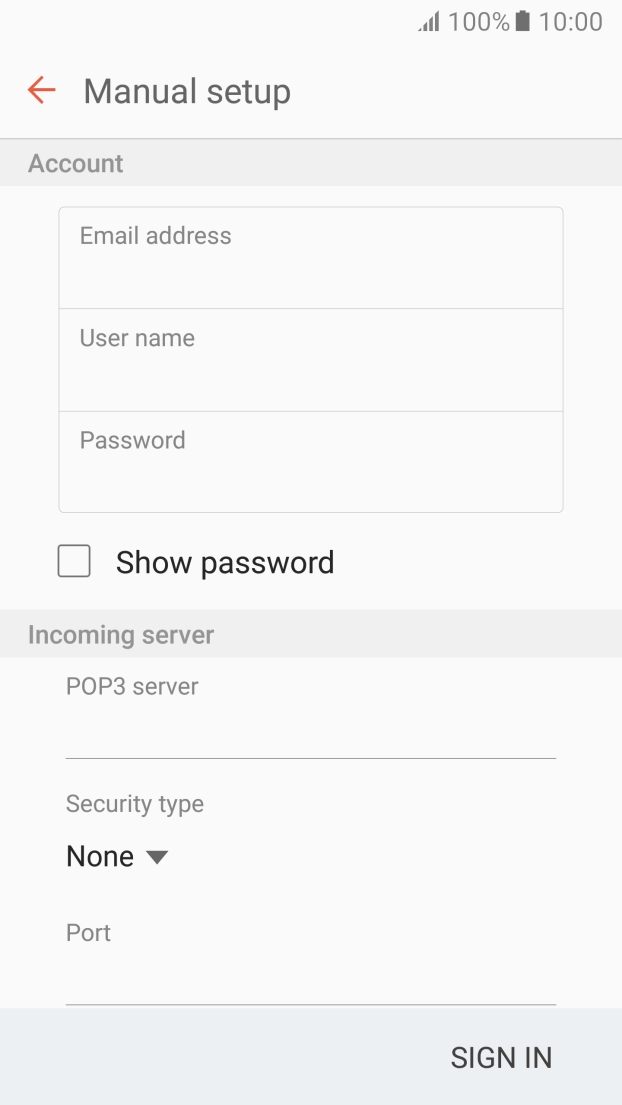
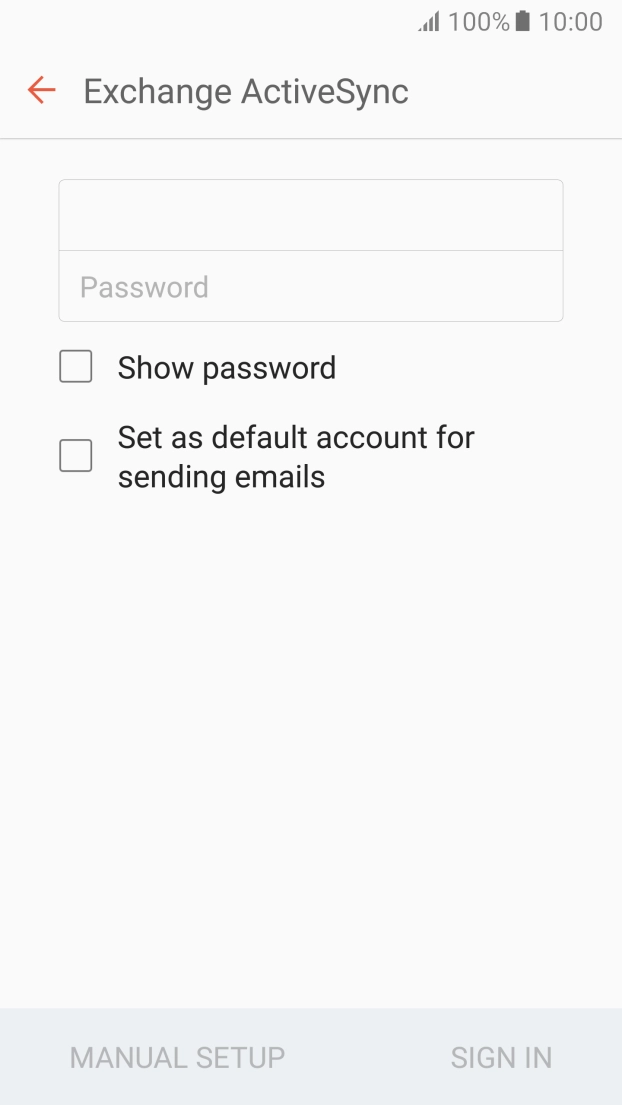
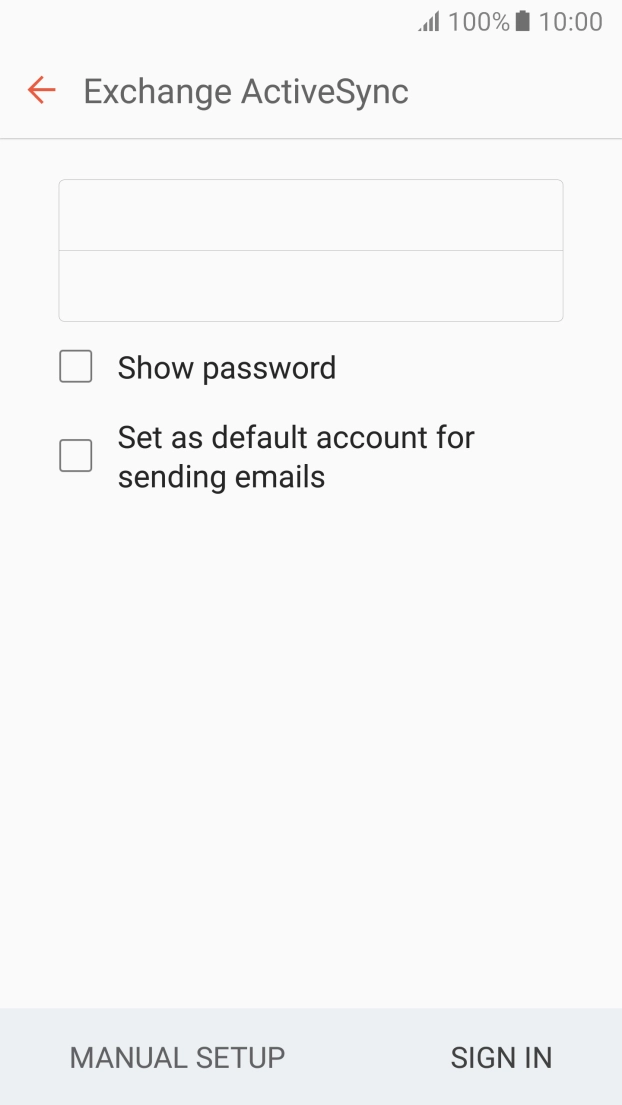
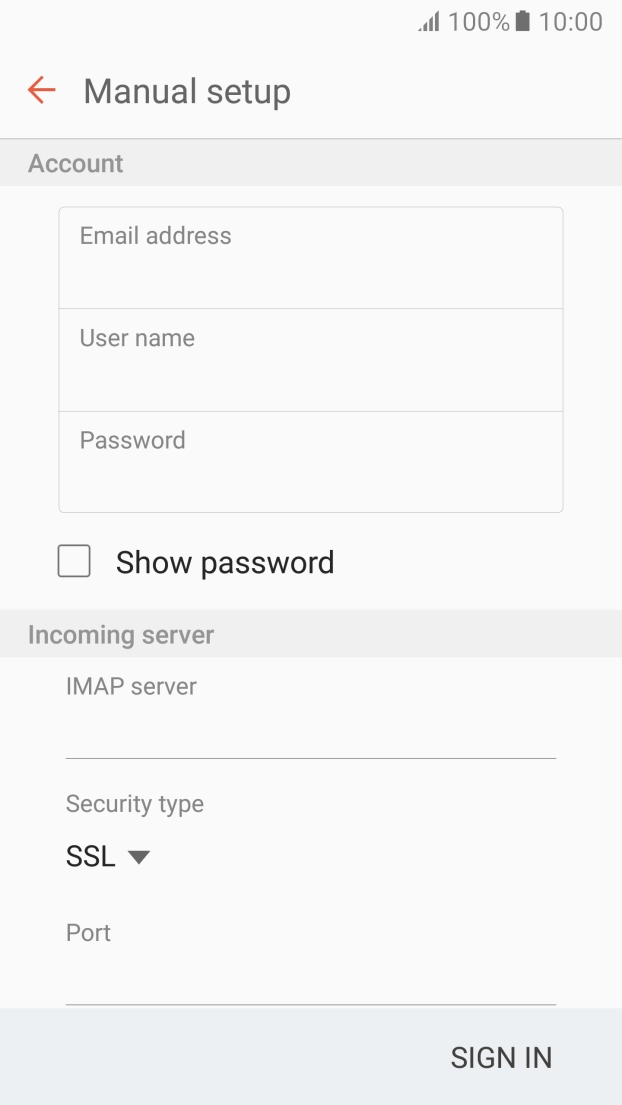
Press Email address and key in your email address.
Press Password and key in the password for your email account.
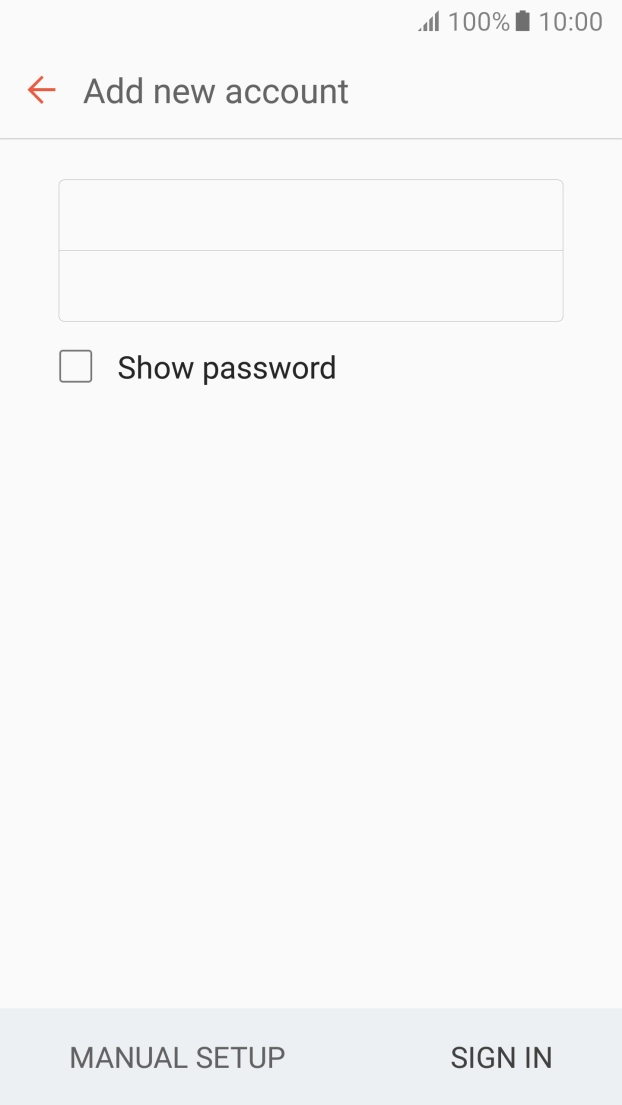
Press SIGN IN.
If the screen tells you that the email account has been set up, follow the instructions on the screen to select more settings and finish the setup.
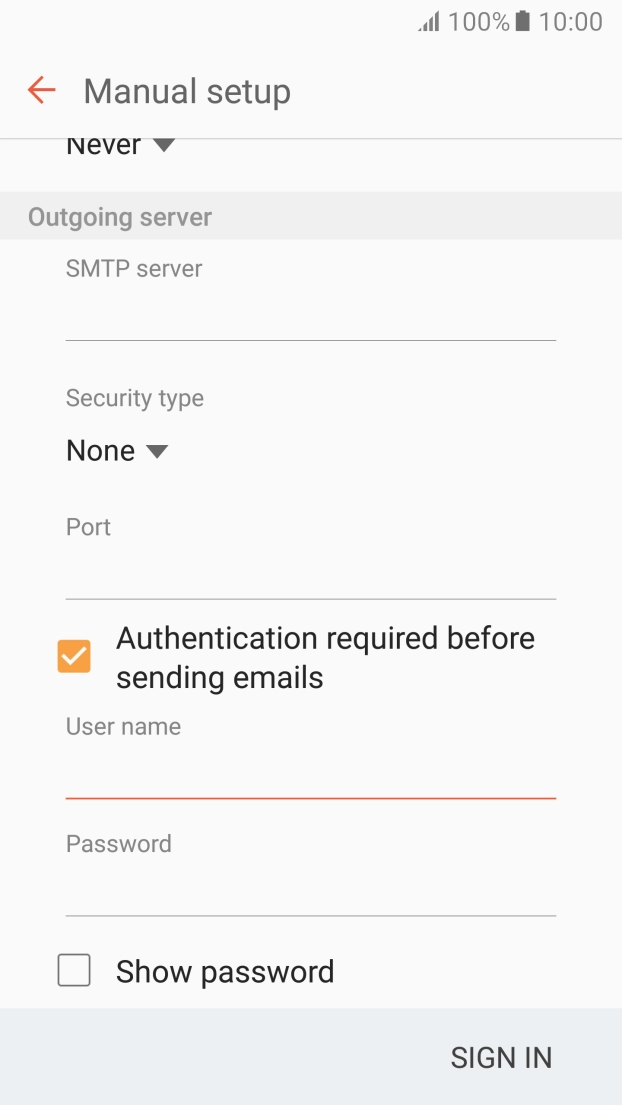
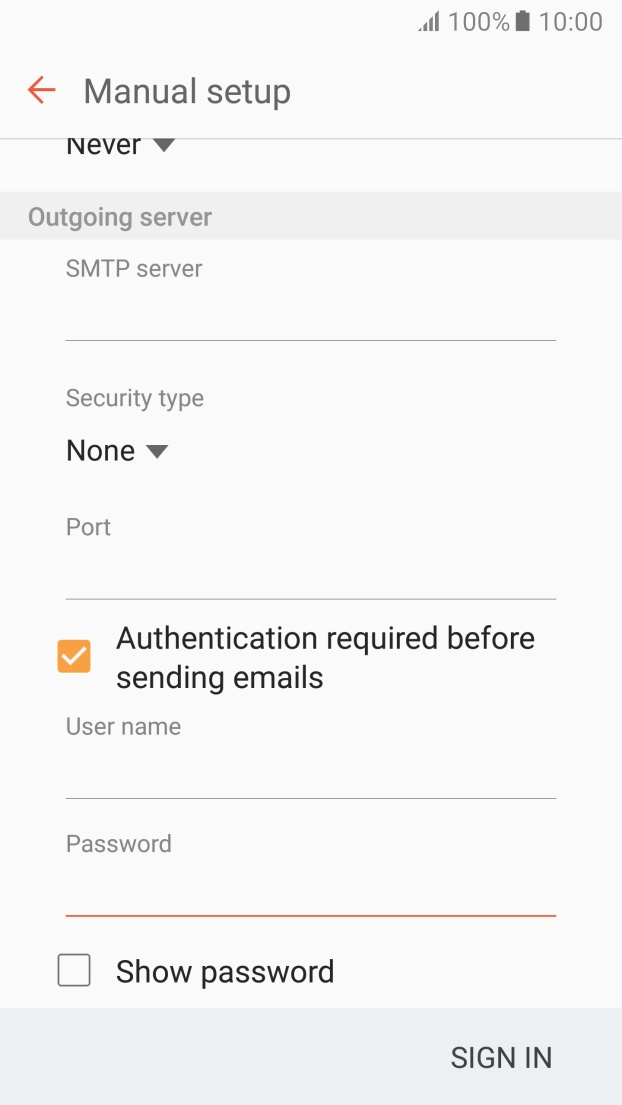
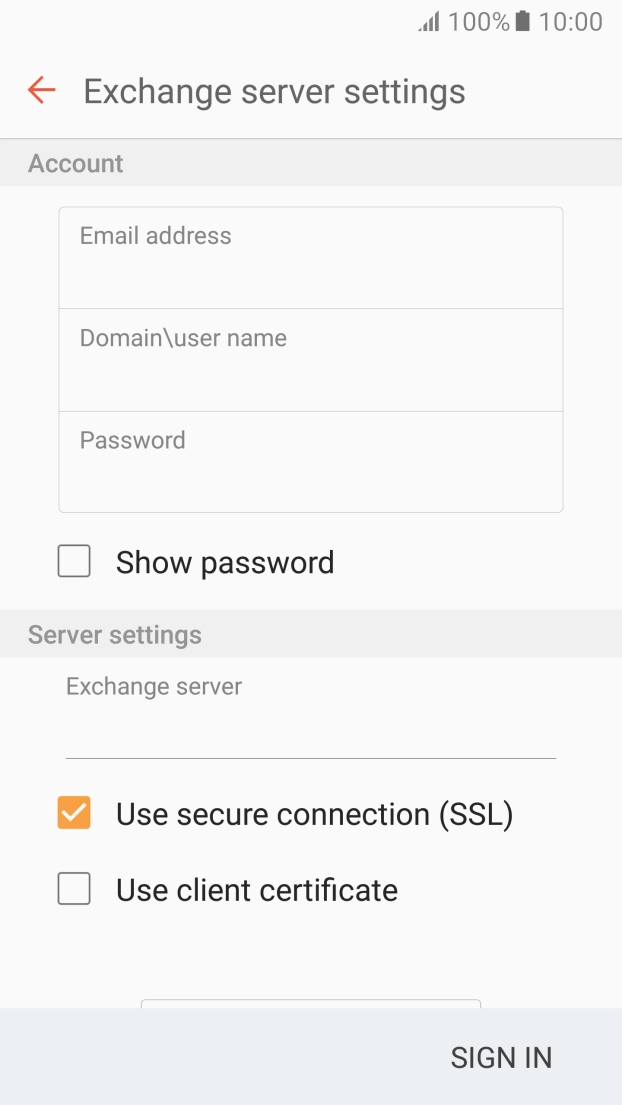
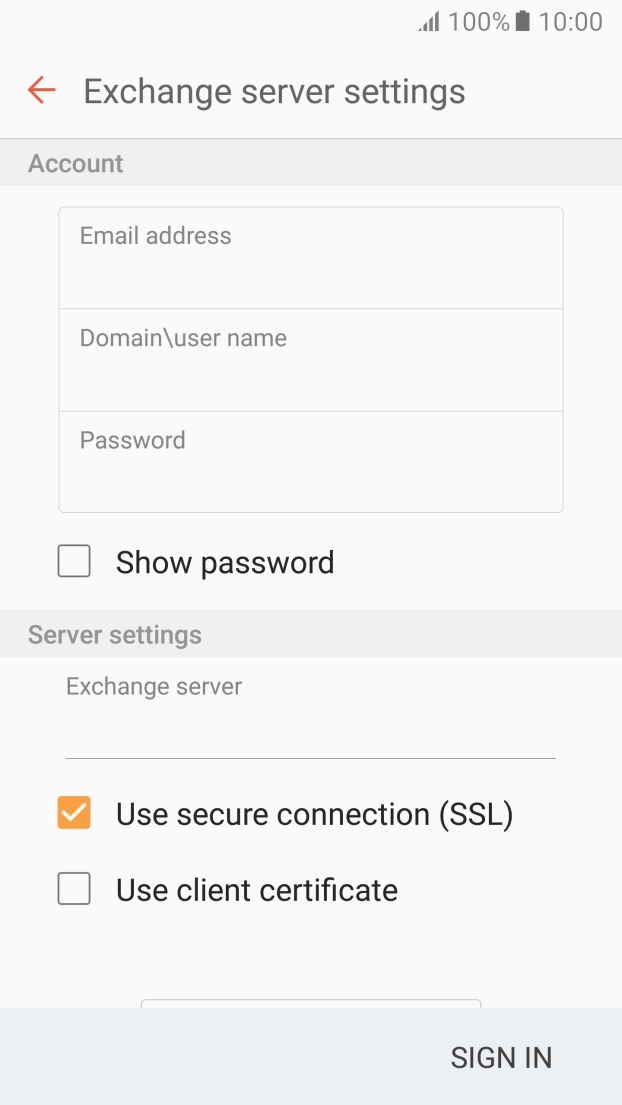
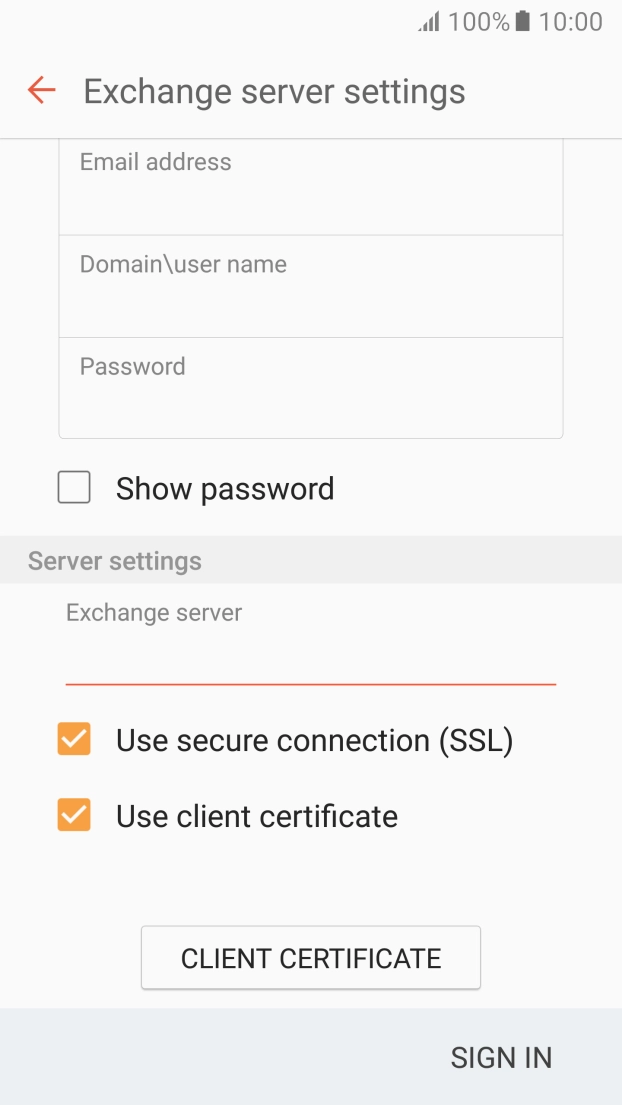
Press the field below "Domain\user name" and key in the domain and username separated by a "\".
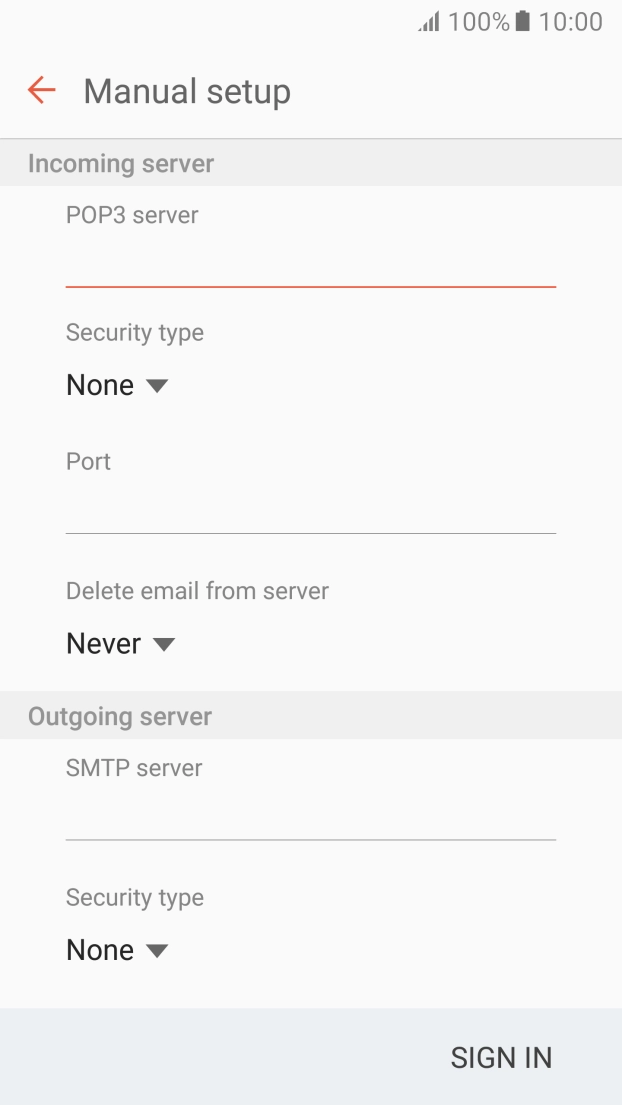
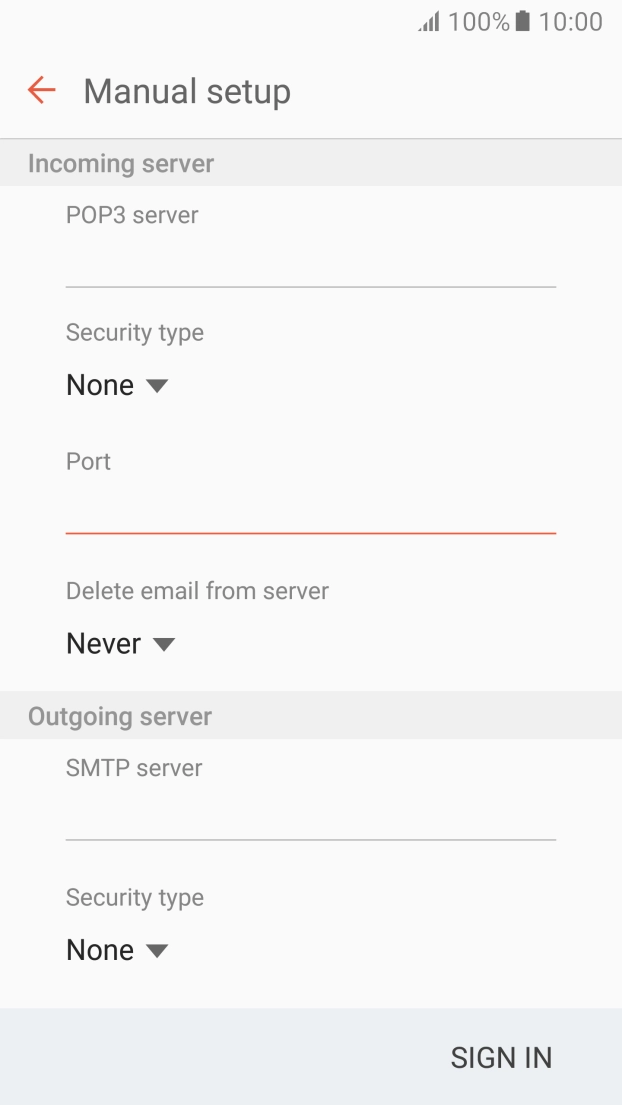
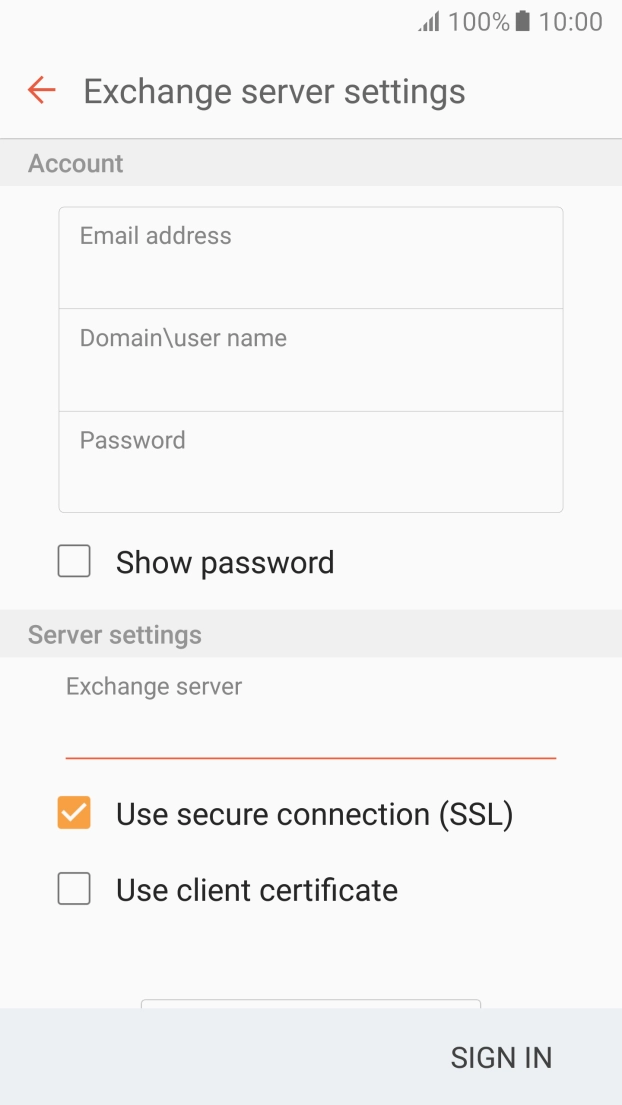
Press the field below "Exchange server" and key in the server address.
Press Use secure connection (SSL) to turn the function on or off.
Press Use client certificate to turn the function on or off.
If you turn on the function, press CLIENT CERTIFICATE and follow the instructions on the screen to install the required certificate.
Press SIGN IN.
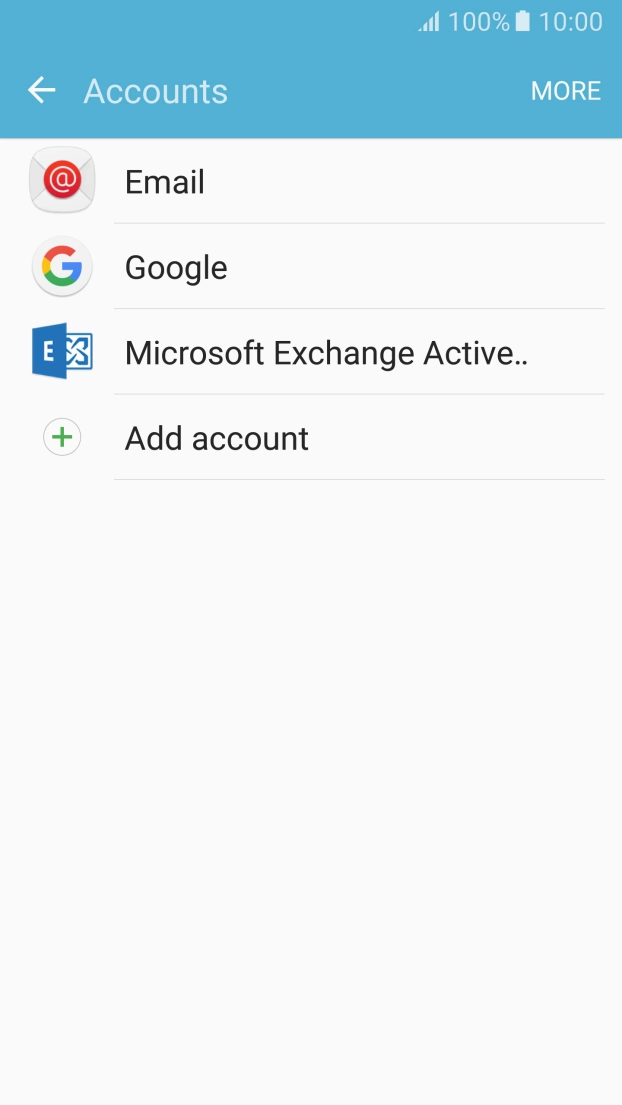
Press Microsoft Exchange ActiveSync.
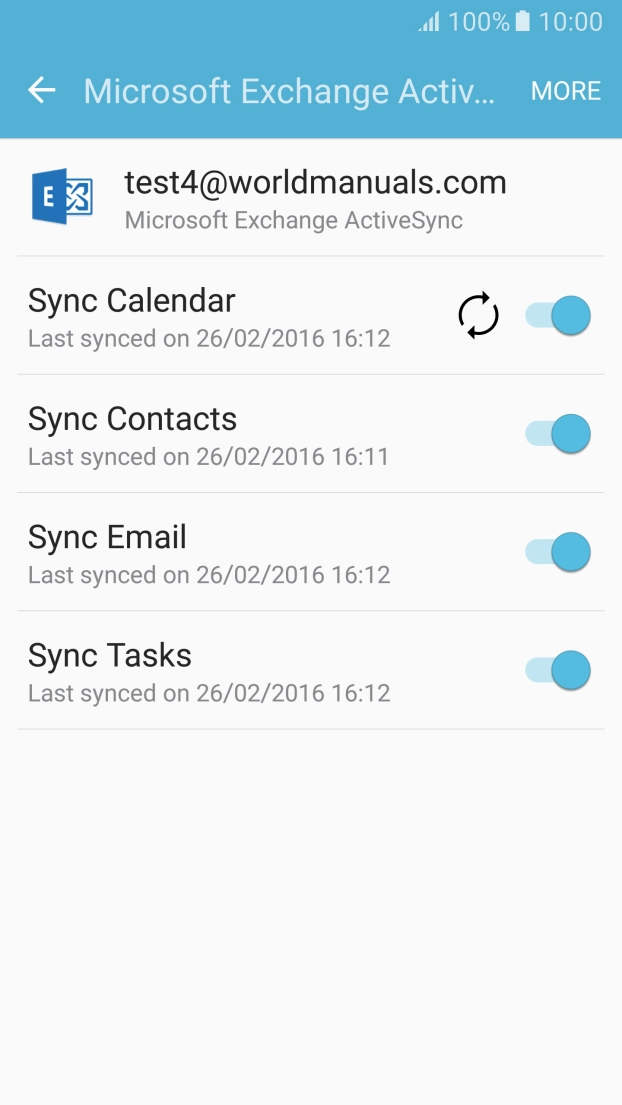
Press the indicator next to "Sync Calender" to turn the function on or off.
Press the indicator next to "Sync Contacts" to turn the function on or off.
Press the indicator next to "Sync Email" to turn the function on or off.
Press the indicator next to "Sync Tasks" to turn the function on or off.
Press the Home key to return to the home screen.
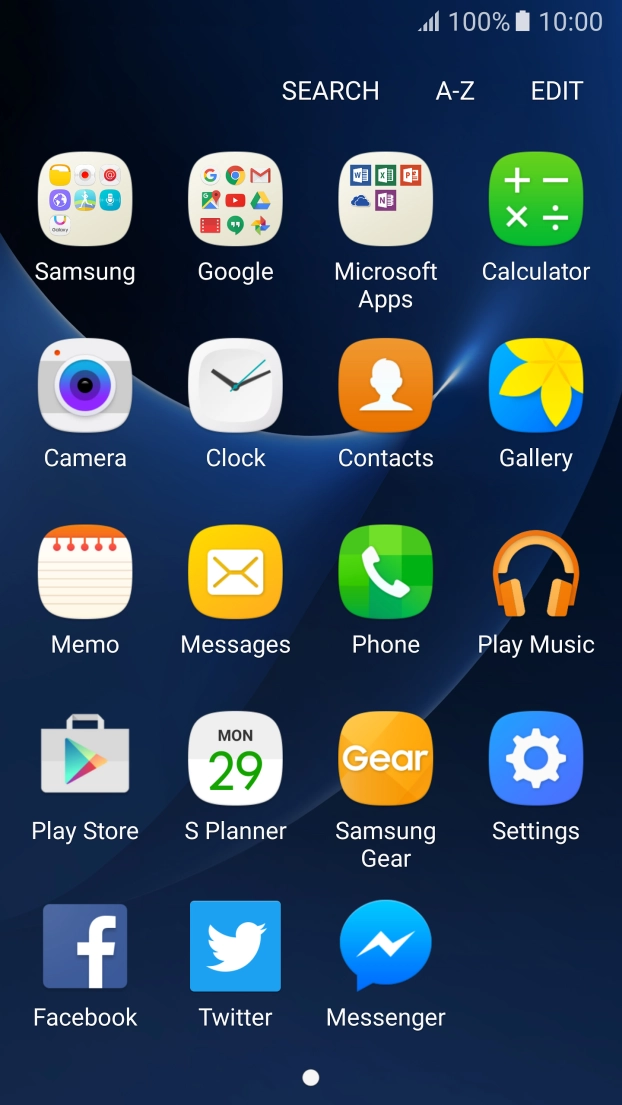
Press Apps.
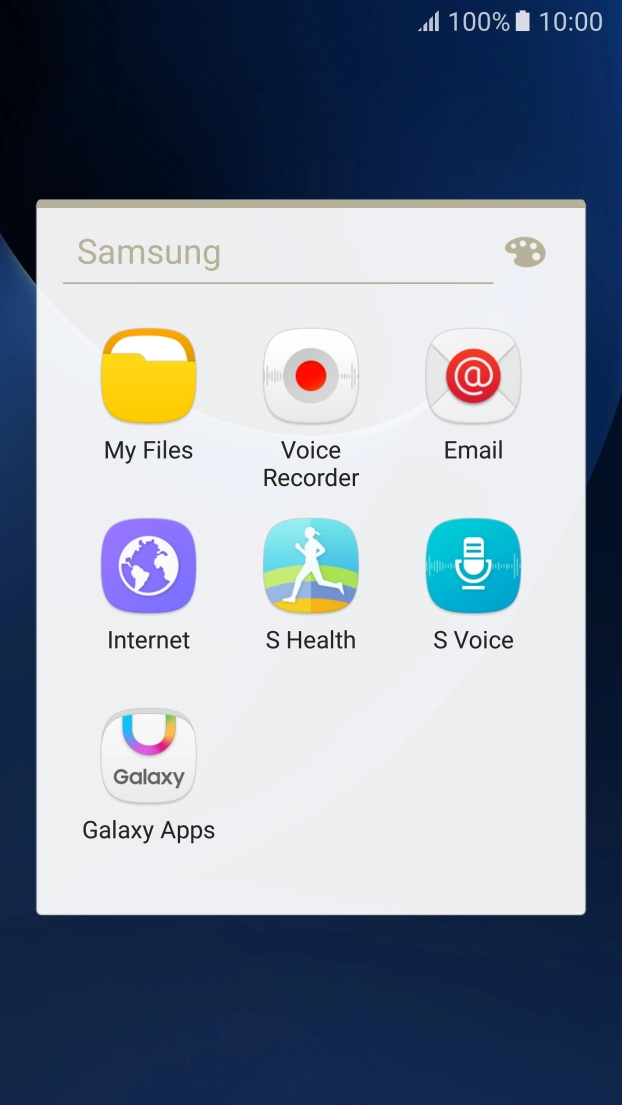
Press Samsung.
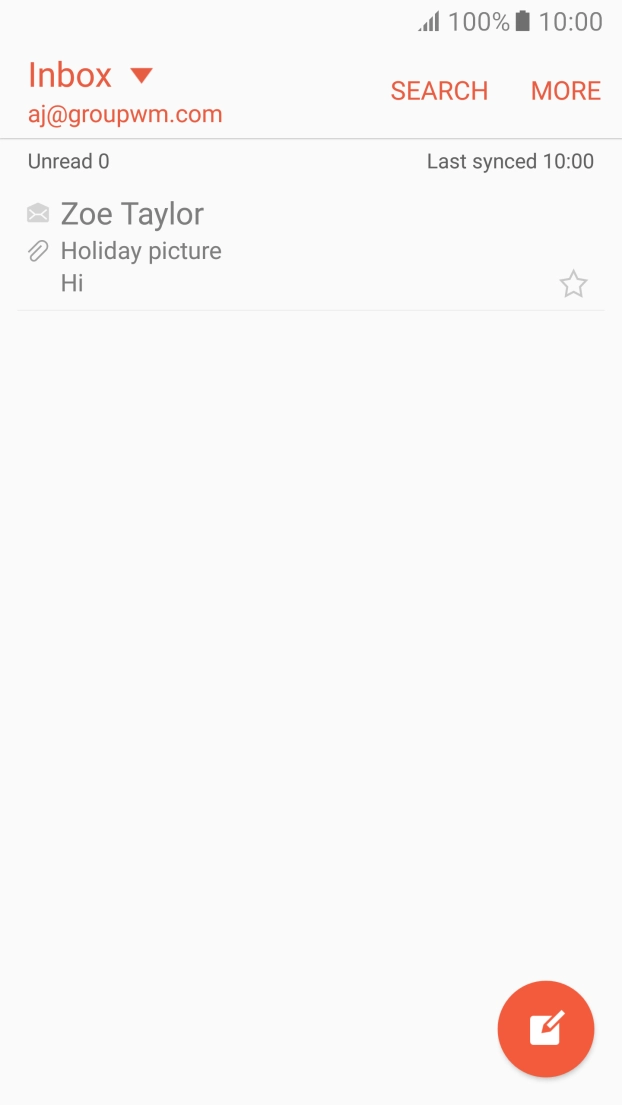
Press Email.
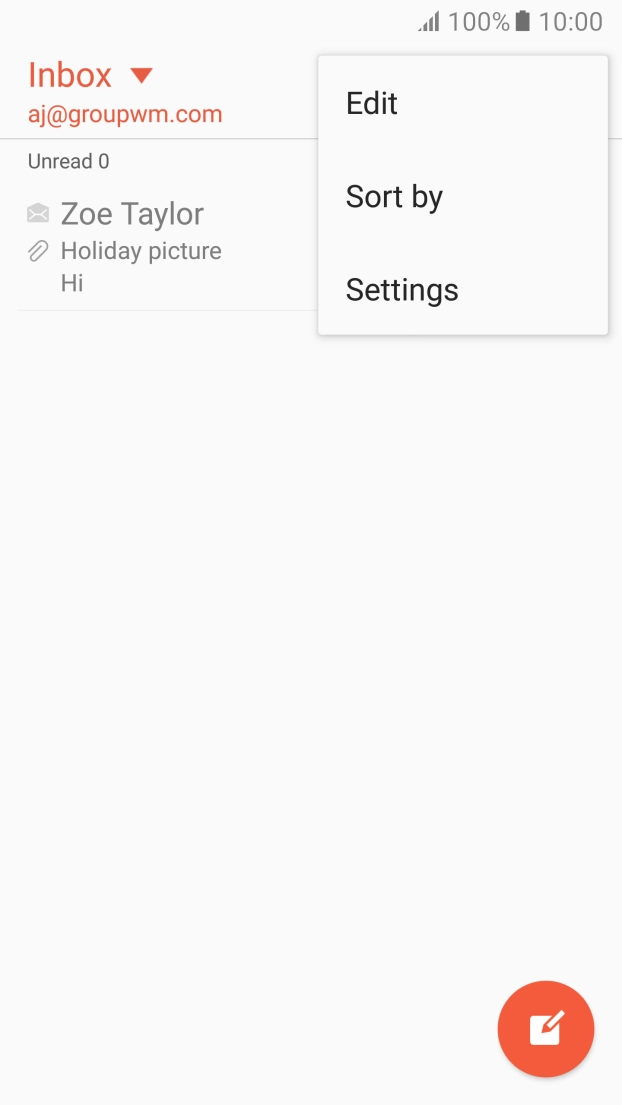
Press MORE.
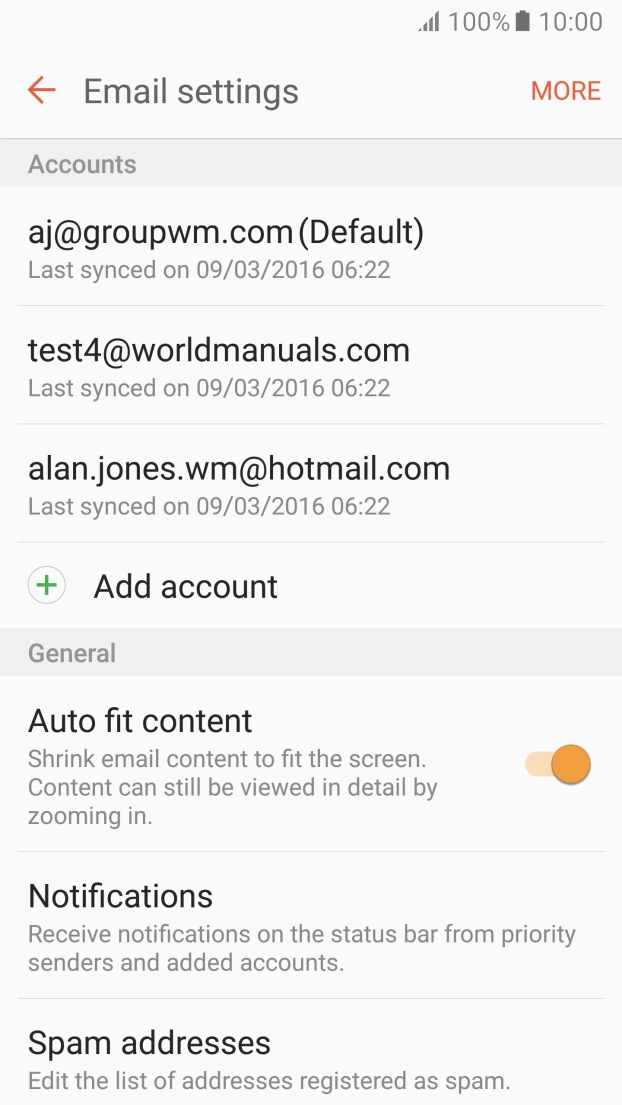
Press Settings.
Press the required Exchange account.
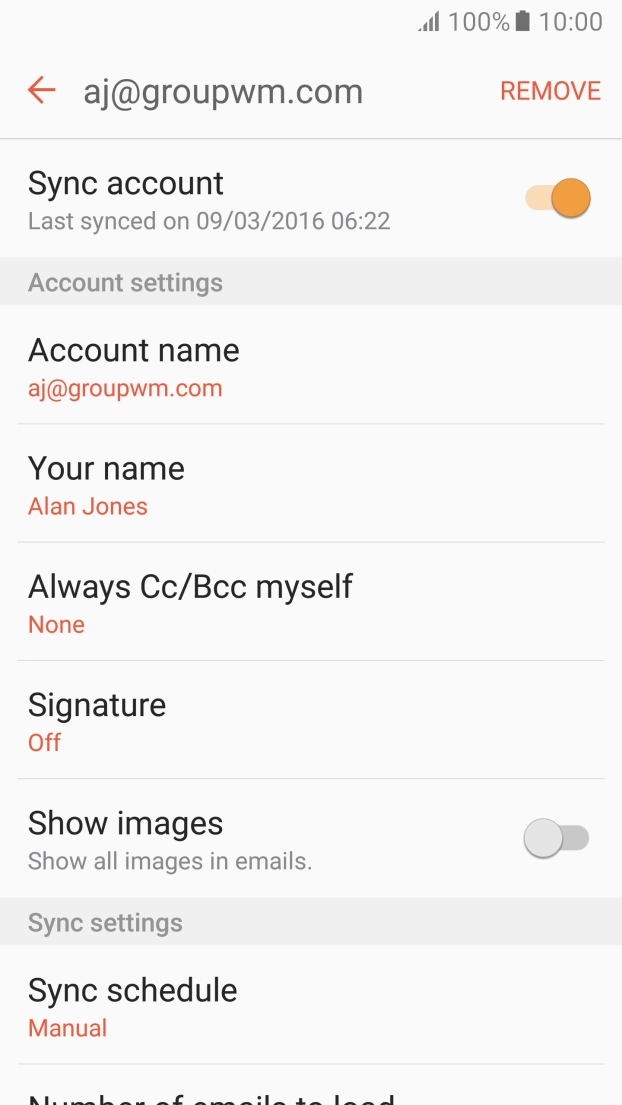
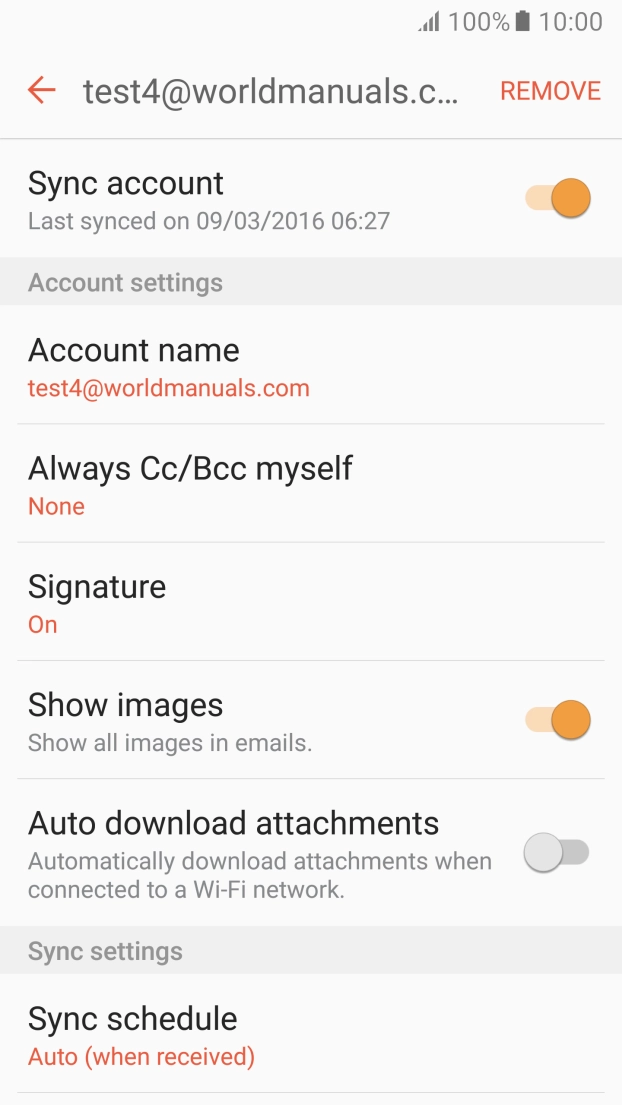
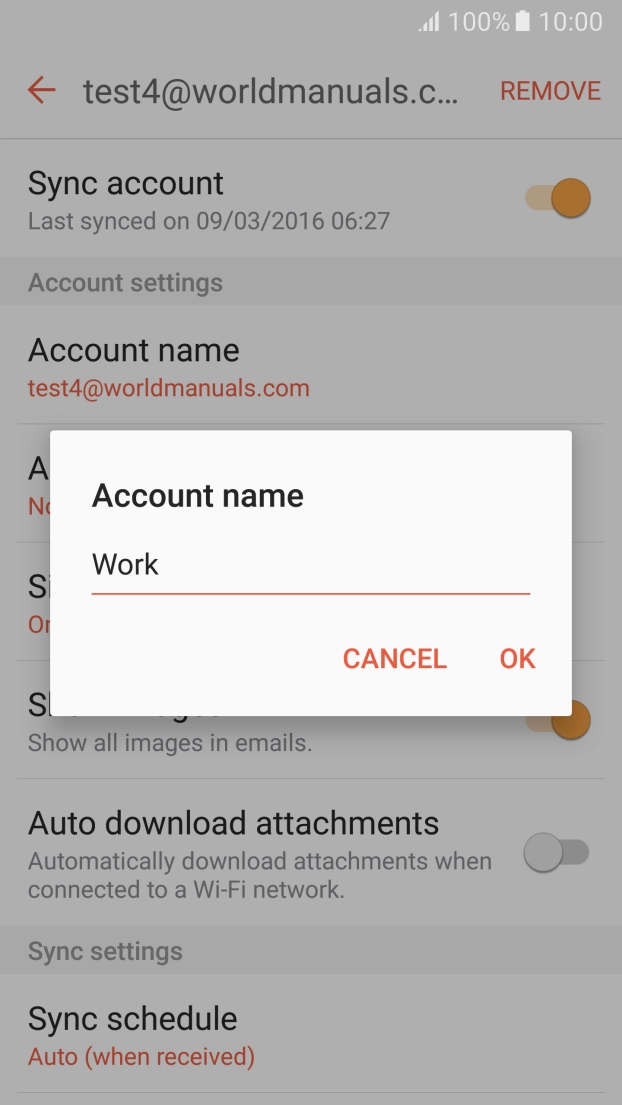
Press Sync account to turn on the function.
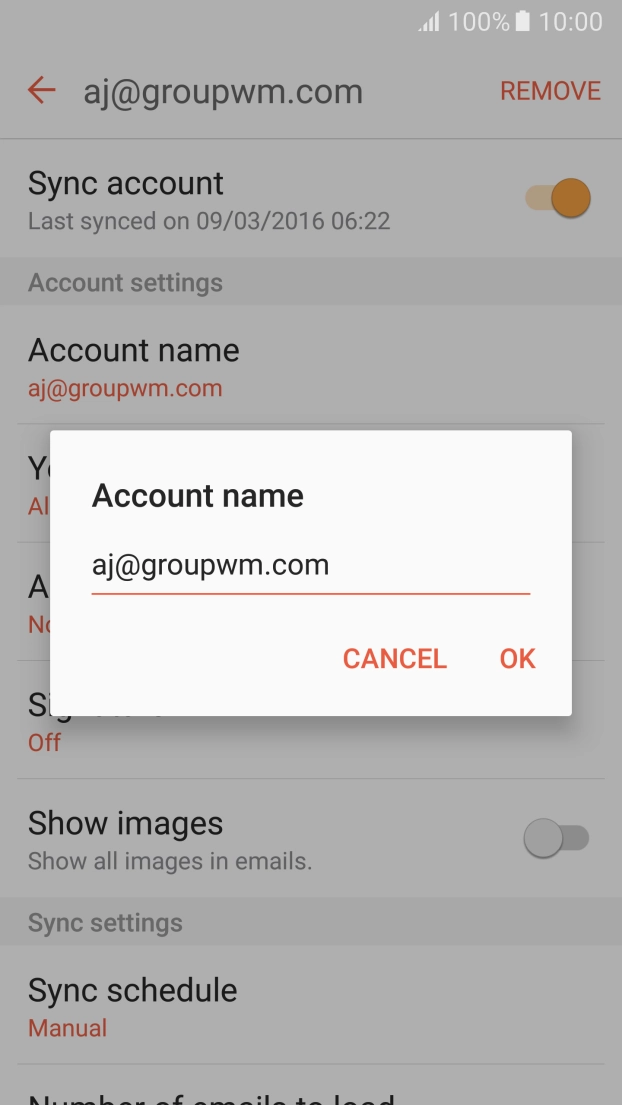
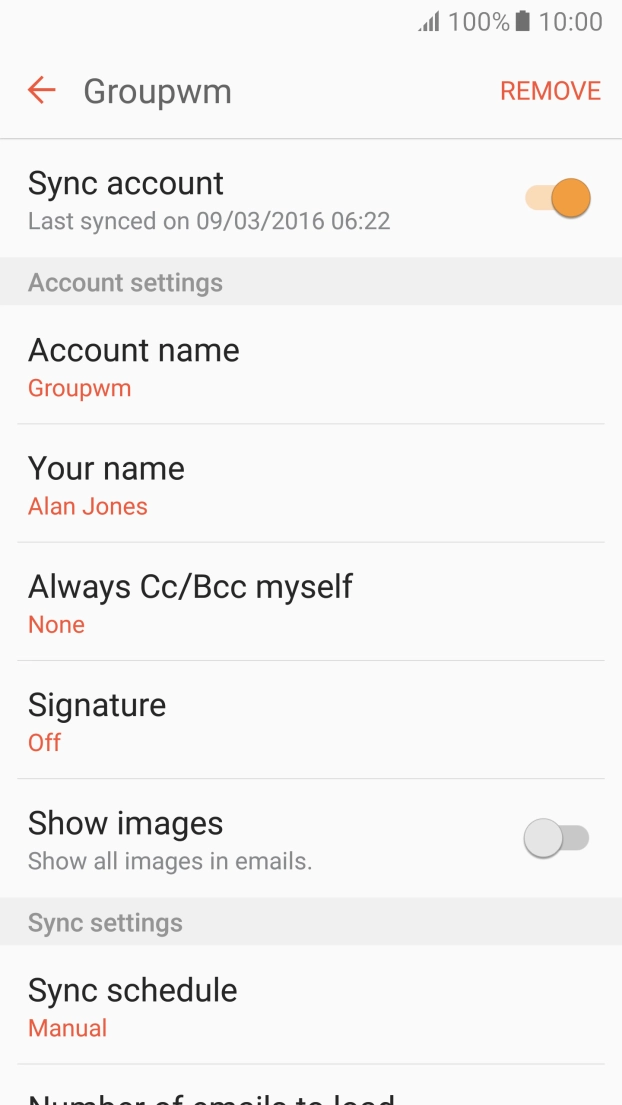
Press Account name and key in the required name.
Press OK.
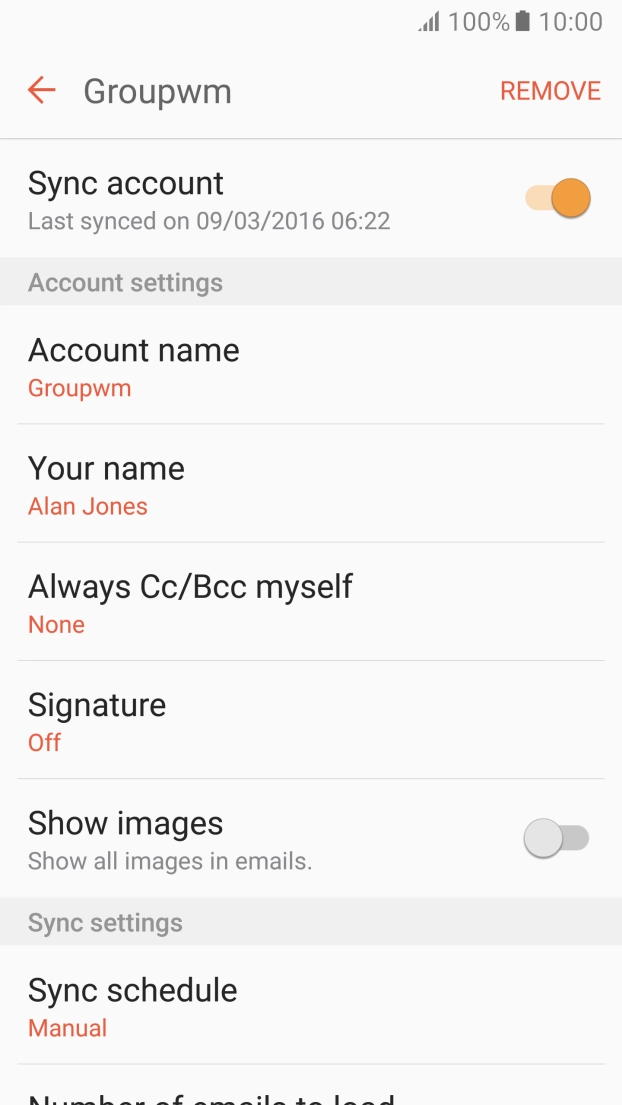
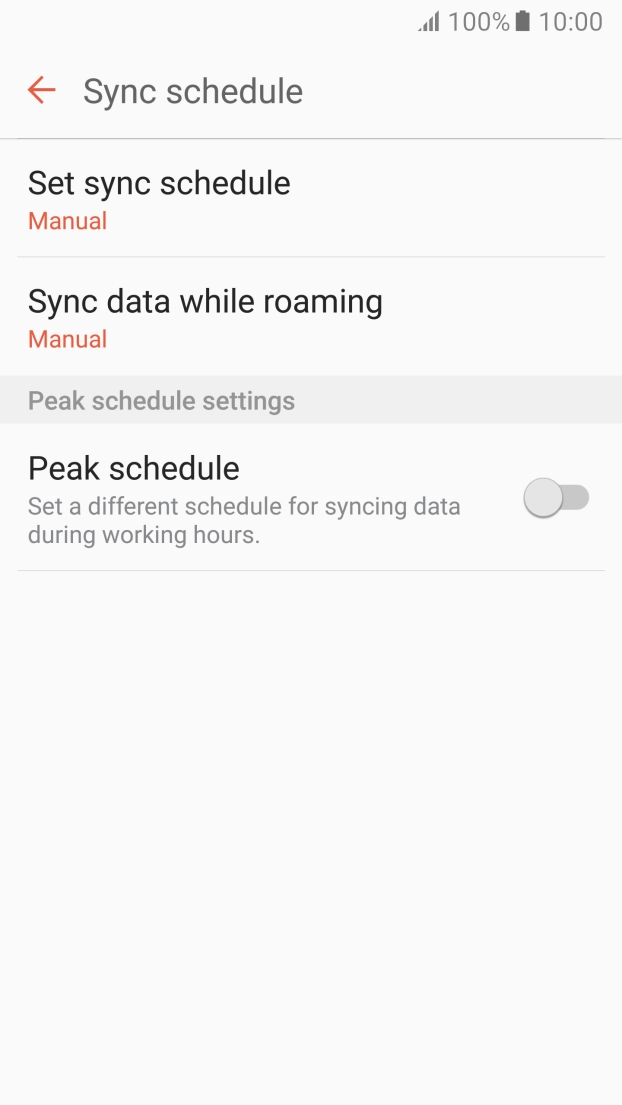
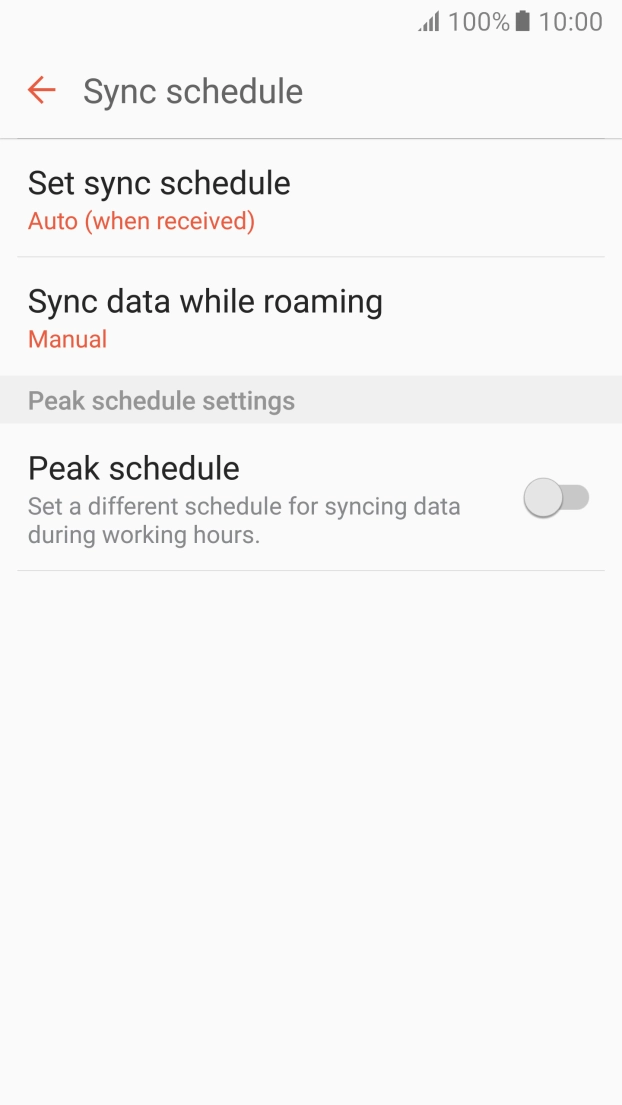
Press Sync schedule.
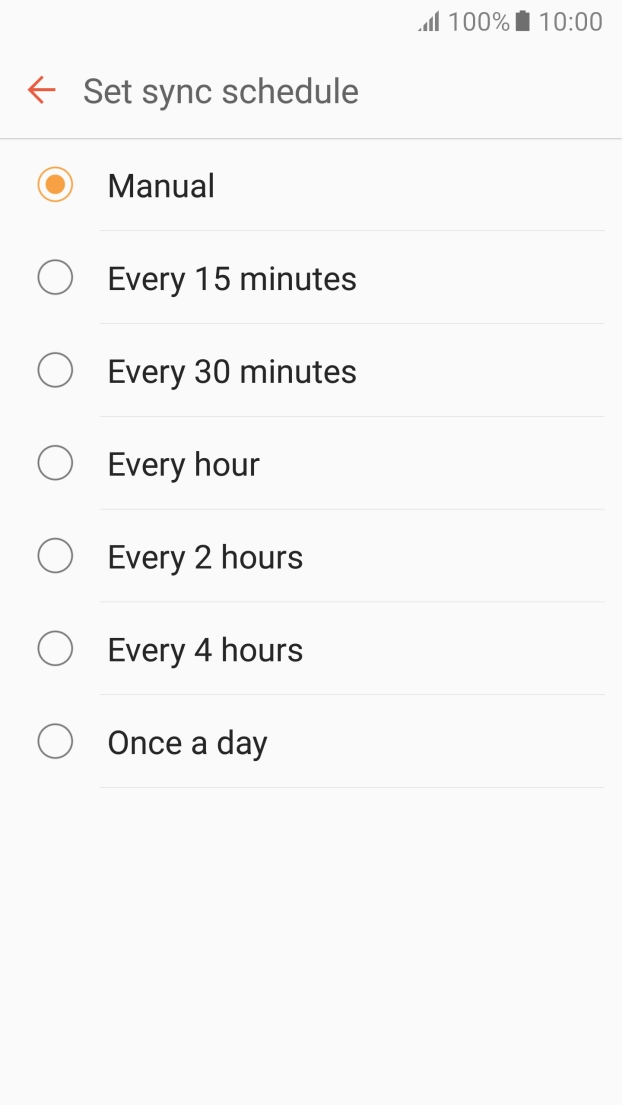
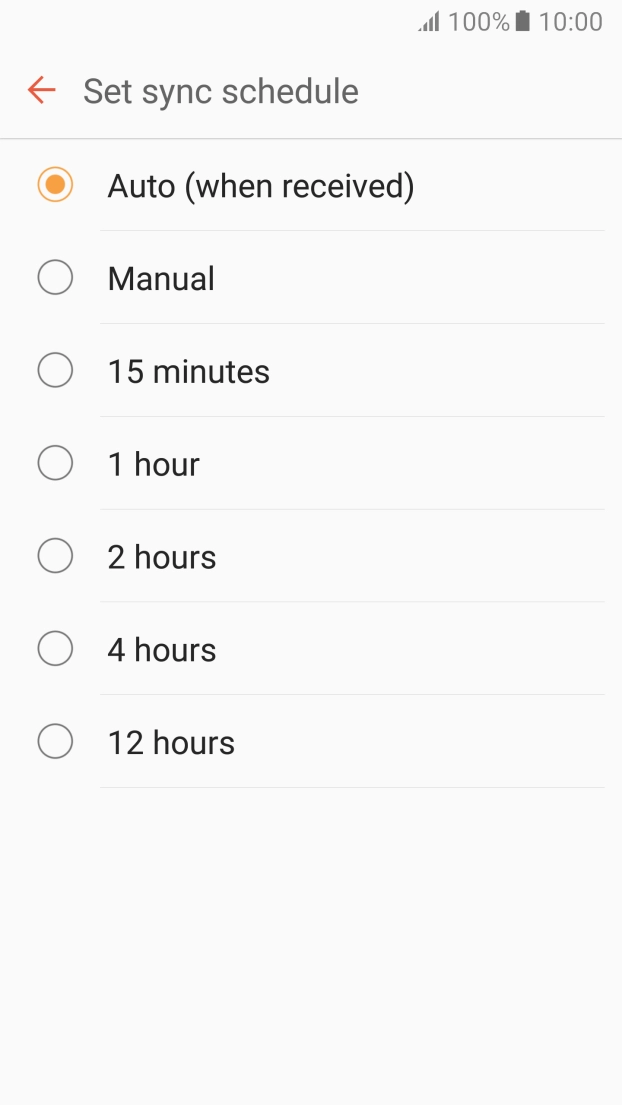
Press Set sync schedule.
Press the required setting.
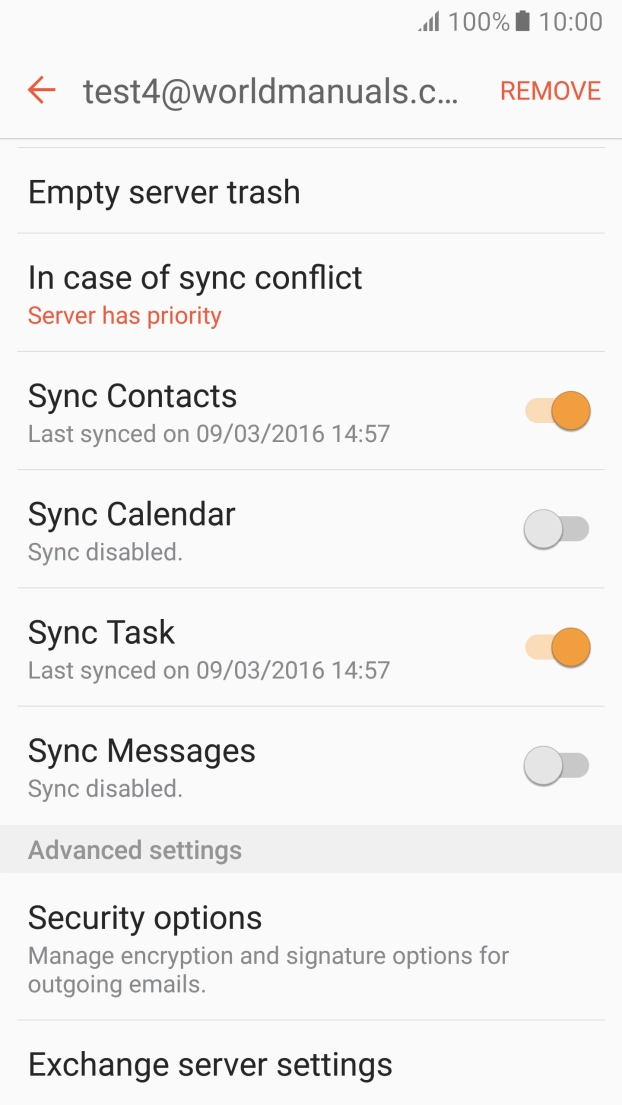
Press the required data types to turn synchronisation on or off.
Press the Home key to return to the home screen.