Sony Xperia Z2 Tablet
Choose another device
Browse via device topic
Help & support guides for your Sony Xperia Z2 Tablet
I can't access the internet
If you can't access the internet, follow these instructions to solve the problem.
Solution: Try again later when you're in an area with better network coverage.
View our network coverage map.
Solution: Connect to Wi-Fi network
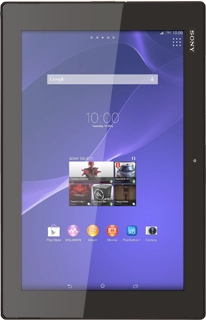
1. Find "Wi-Fi"
Slide your finger down the display starting from the top right edge of your tablet.
- Slide your finger down the display starting from the top right edge of your tablet.
- Press Settings.
- Press Wi-Fi.
- Press the indicator next "Wi-Fi" until the function is turned on.
- A list of Wi-Fi networks within range is displayed.
- Press the required Wi-Fi network.
- Follow the instructions on the display to select security settings, if required.
- Press Connect.
- Press the home icon to return to the home screen.
Solution: Set up your tablet for internet
1. Find "Access Point Names"
Slide your finger down the display starting from the top right edge of your tablet.
- Slide your finger down the display starting from the top right edge of your tablet.
- Press Settings.
- Press More....
- Press Mobile networks.
- Press Access Point Names.
- Press the new data connection icon.
- Press Name.
- Key in Telstra Internet and press OK.
- Press APN.
- Key in telstra.wap and press OK.
- Press MCC.
- Key in 505 and press OK.
- Press MNC.
- Key in 01 and press OK.
- Press Authentication type.
- Press None.
- Press APN type.
- Key in default and press OK.
- Press the menu icon.
- Press Save.
- Press the field next to the data connection to fill in the field.
- Press the home icon to return to the home screen.
Solution: Turn data roaming on or off
1. Find "Mobile networks"
Slide your finger down the display starting from the top right edge of your tablet.
- Slide your finger down the display starting from the top right edge of your tablet.
- Press Settings.
- Press More....
- Press Mobile networks.
- Press Data roaming to turn the function on or off.
- If you turn on data roaming:
- Press Yes to confirm.
- Press the home icon to return to the home screen.
Solution: Use internet browser
- Press the menu icon.
- Press Chrome.
- Press the address bar.
- Key in the address of the required web page and press Go.
- Press the star.
- Edit the name of the bookmark.
- Press Save.
- Press the menu icon.
- Press Bookmarks.
- Press the required bookmark.
- Press the home icon to return to the home screen.
Solution: Select network
1. Find "Network operators"
Slide your finger down the display starting from the top right edge of your tablet.
- Slide your finger down the display starting from the top right edge of your tablet.
- Press Settings.
- Press More....
- Press Mobile networks.
- Press Network operators.
- Your tablet searches for networks within range.
- Select one of the following options:
- Select network manually, go to 2a.
- Select network automatically, go to 2b.
- Press Search mode.
- Press Manual.
- Press the required network.
- The display will tell you if you have access to the network you've chosen.
- Press Search mode.
- Press Automatic.
- Press the home icon to return to the home screen.
Solution: Turn mobile data on or off
1. Find "Mobile networks"
Slide your finger down the display starting from the top right edge of your tablet.
- Slide your finger down the display starting from the top right edge of your tablet.
- Press Settings.
- Press More....
- Press Mobile networks.
- Press Mobile data traffic to turn the function on or off.
- Press OK.
- Press the home icon to return to the home screen.
Solution: Turn Wi-Fi on or off
1. Turn Wi-Fi on or off
Slide your finger down the display starting from the top right edge of your tablet.
- Slide your finger down the display starting from the top right edge of your tablet.
- Press Wi-Fi to turn the function on or off.
- Press the home icon to return to the home screen.