Sony Xperia Z2 Tablet
Choose another device
Browse via device topic
Help & support guides for your Sony Xperia Z2 Tablet
I can't send and receive picture messages
Picture messages can contain media files such as pictures and audio files. You can send picture messages to one or more phone numbers and email addresses. If you can't send and receive picture messages, follow these instructions to solve the problem.
Solution: Try again later when you're in an area with better network coverage.
View our network coverage map.
Solution: Write and send picture messages
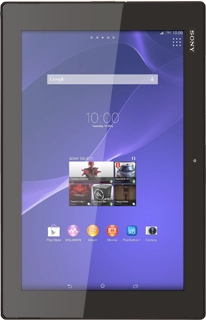
- Press the menu icon.
- Press Messaging.
- Press the new message icon.
- Key in the first letters of the required contact.
- Matching contacts are displayed.
- Press the required contact.
- Repeat the procedure to add more recipients.
- Write the text for your picture message.
- Press the attachment icon.
- Select one of the following options:
- Insert picture, go to 4a.
- Insert video clip, go to 4b.
- Insert audio file, go to 4c.
- Press Add picture.
- Go to the required folder.
- Press the required picture.
- Press Add video.
- Go to the required folder.
- Press the required video clip.
- Press Add sound.
- Press WALKMAN.
- Go to the required folder.
- Press the required audio file.
- Press Send when you've finished your picture message.
- Press the home icon to return to the home screen.
Solution: Try again later or when you're in another area.
Solution: Set up your tablet for picture messaging
1. Find "Access Point Names"
Slide your finger down the display starting from the top right edge of your tablet.
- Slide your finger down the display starting from the top right edge of your tablet.
- Press Settings.
- Press More....
- Press Mobile networks.
- Press Access Point Names.
- Press the new data connection icon.
- Press Name.
- Key in Telstra MMS and press OK.
- Press APN.
- Key in telstra.mms and press OK.
- Press MMSC.
- Key in http://mmsc.telstra.com:8002 and press OK.
- Press MMS proxy.
- Key in 10.1.1.180 and press OK.
- Press MMS port.
- Key in 80 and press OK.
- Press MCC.
- Key in 505 and press OK.
- Press MNC.
- Key in 01 and press OK.
- Press Authentication type.
- Press None.
- Press APN type.
- Key in mms and press OK.
- Press the menu icon.
- Press Save.
- Press the home icon to return to the home screen.
Solution: Select network mode
1. Find "Network Mode"
Slide your finger down the display starting from the top right edge of your tablet.
- Slide your finger down the display starting from the top right edge of your tablet.
- Press Settings.
- Press More....
- Press Mobile networks.
- Press Network Mode.
- Press WCDMA only, GSM only, WCDMA (preferred)/GSM or LTE (preferred)/WCDMA/GSM.
- Press the home icon to return to the home screen.
Solution: Find your nearest Telstra Shop or contact customer service.
Solution: Turn data roaming on or off
1. Find "Mobile networks"
Slide your finger down the display starting from the top right edge of your tablet.
- Slide your finger down the display starting from the top right edge of your tablet.
- Press Settings.
- Press More....
- Press Mobile networks.
- Press Data roaming to turn the function on or off.
- If you turn on data roaming:
- Press Yes to confirm.
- Press the home icon to return to the home screen.
Solution: Select network
1. Find "Network operators"
Slide your finger down the display starting from the top right edge of your tablet.
- Slide your finger down the display starting from the top right edge of your tablet.
- Press Settings.
- Press More....
- Press Mobile networks.
- Press Network operators.
- Your tablet searches for networks within range.
- Select one of the following options:
- Select network manually, go to 2a.
- Select network automatically, go to 2b.
- Press Search mode.
- Press Manual.
- Press the required network.
- The display will tell you if you have access to the network you've chosen.
- Press Search mode.
- Press Automatic.
- Press the home icon to return to the home screen.
Solution: Top up your prepaid card.
Solution: Write and send picture messages
- Press the menu icon.
- Press Messaging.
- Press the new message icon.
- Key in the first letters of the required contact.
- Matching contacts are displayed.
- Press the required contact.
- Repeat the procedure to add more recipients.
- Write the text for your picture message.
- Press the attachment icon.
- Select one of the following options:
- Insert picture, go to 4a.
- Insert video clip, go to 4b.
- Insert audio file, go to 4c.
- Press Add picture.
- Go to the required folder.
- Press the required picture.
- Press Add video.
- Go to the required folder.
- Press the required video clip.
- Press Add sound.
- Press WALKMAN.
- Go to the required folder.
- Press the required audio file.
- Press Send when you've finished your picture message.
- Press the home icon to return to the home screen.
Solution: Turn mobile data on or off
1. Find "Mobile networks"
Slide your finger down the display starting from the top right edge of your tablet.
- Slide your finger down the display starting from the top right edge of your tablet.
- Press Settings.
- Press More....
- Press Mobile networks.
- Press Mobile data traffic to turn the function on or off.
- Press OK.
- Press the home icon to return to the home screen.