Sony Xperia Z2
Choose another deviceSearch suggestions will appear below the field as you type

Browse via device topic
Help & support guides for your Sony Xperia Z2
I can't send and receive email
If you can't send and receive email, there may be several causes of the problem.
Solution: Contact your email provider for the correct settings for the incoming or outgoing server.
Solution: Write and send email
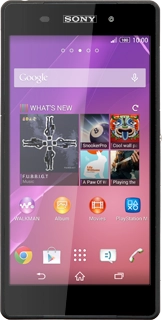
- Press the menu icon.
- Press Email.
- Press the name of the email account.
- Press the required email account.
- Press Inbox.
- Press the new email icon.
- Key in the first letters of the required contact.
- Matching contacts are displayed.
- Press the required contact.
- Repeat the procedure to add more recipients.
- Press Subject.
- Key in a subject for the email.
- Press the text input field.
- Write the text for your email.
- Press the attachment icon.
- Press Add
. - Go to the required folder.
- Press the required file.
- Press Send when you've finished your email.
- Press the home icon to return to the home screen.
Solution: Set up your phone for email
- Press the menu icon.
- Press Email.
- Press Other email account.
- Key in your email address.
- Press Password and key in the password for your email account.
- Press Next.
- Press POP3.
- Key in the username for your email account.
- Press the field below "POP3 server" and key in the name or the IP address of your email provider's incoming server.
- Press the field below "Port" and key in 110
- Press the drop down list below "Security type".
- Press None.
- Press the drop down list below "Delete email from server".
- Press Never or When I delete from Inbox.
- Press Next.
- Key in the name or IP address of your email provider's outgoing server.
- Press the field below "Port" and key in 25
- Press the drop down list below "Security type".
- Press None.
- Press Require sign-in to turn the function on or off.
- If you turn on SMTP authentication:
- Press the field below "Username" and key in your username for your email provider's outgoing server.
- Press the field below "Password" and key in your password for your email provider's outgoing server.
- Press Next.
- Press the drop down list below "Check frequency".
- Press Manual or the required period.
- Press Notify me when email arrives to turn the function on or off.
- Press Sync email from this account to turn the function on or off.
- Press Next.
- Key in a name for your email account.
- Press the field below "Your name (displayed on outgoing messages)" and key in the required sender name.
- Press Next.
- Wait while your phone retrieves new email.
- Press the home icon to return to the home screen.
Solution: Set up your phone for Exchange email
- Press the menu icon.
- Press Email.
- Press Exchange ActiveSync.
- Key in your email address.
- Press Password and key in your password.
- Press Manual setup.
- Key in the domain and username separated by a "\".
- Press the field below "Server" and key in the server address.
- Press Use secure connection (SSL) to turn the function on or off.
- Press Use client certificate to turn the function on or off.
- If you turn on the function:
- Press Client certificate and follow the instructions on the display to install the required certificate.
- Press Next.
- Press the drop down list below "Check frequency".
- Press Automatic (Push), Manual or the required interval.
- Press the drop down list below "Days to sync".
- Press the required setting.
- Press Notify me when email arrives to turn the function on or off.
- Press one of the following data types to turn synchronisation on or off:
- Sync contacts from this account
- Sync calendar from this account
- Sync email from this account
- Sync tasks from this account
- Press Next.
- Key in a name for your email account.
- Press Next.
- Press the home icon to return to the home screen.
Solution: Set up your phone for Telstra Mail
- Press the menu icon.
- Press Email.
- Key in your Telstra email address.
- Press Password and key in the password for your Telstra email account.
- Press Manual setup.
- Press IMAP.
- Key in the username for your Telstra email account.
- Press the field below "IMAP server" and key in imap.telstra.com
- Press the field below "Port" and key in 993
- Press the drop down list below "Security type".
- Press SSL/TLS (Accept all certificates).
- Press Next.
- Key in smtp.telstra.com
- Press the field below "Port" and key in 465
- Press the drop down list below "Security type".
- Press SSL/TLS (Accept all certificates).
- Press Require sign-in to turn on the function.
- Press the field below "Username" and key in the username for your Telstra email account.
- Press the field below "Password" and key in the password for your Telstra email account.
- Press Next.
- Press the drop down list below "Check frequency".
- Press Automatic (Push), Manual or the required period.
- Press the drop down list below "Days to sync".
- Press the required setting.
- Press Notify me when email arrives to turn the function on or off.
- Press Sync email from this account to turn the function on or off.
- Press Download attachments automatically when connected to Wi-Fi network to turn the function on or off.
- Press Next.
- Key in a name for your email account.
- Press the field below "Your name (displayed on outgoing messages)" and key in the required sender name.
- Press Next.
- Wait while your phone retrieves new email.
- Press the home icon to return to the home screen.