Browse via device topic
I can't send and receive email
If you can't send and receive email, there may be several causes of the problem.
To send and receive email using POP3, your phone needs to be correctly set up for email.
Solution: Set up your phone for POP3 email
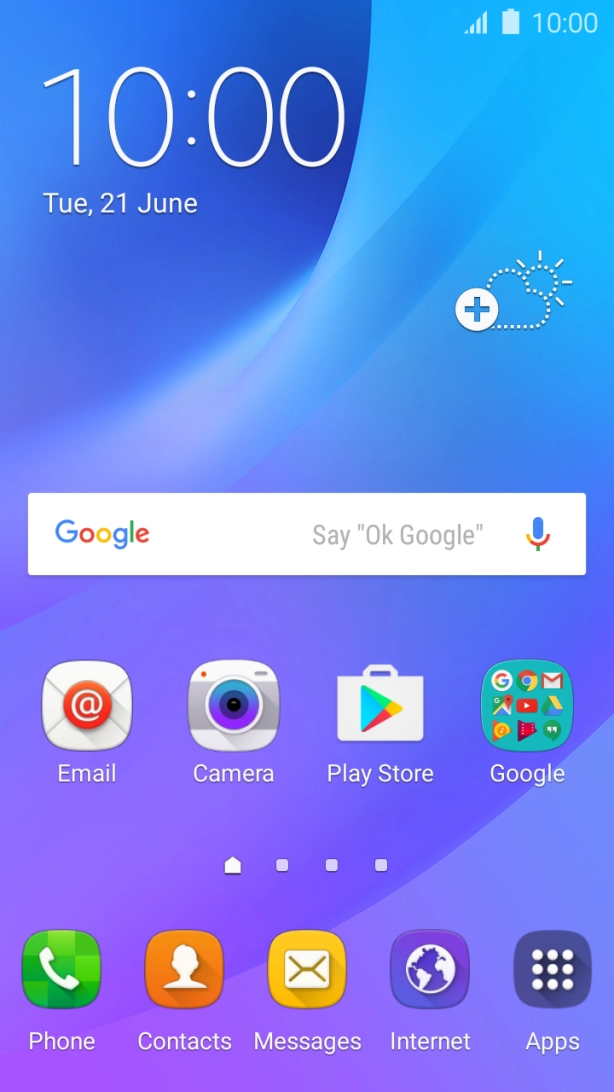
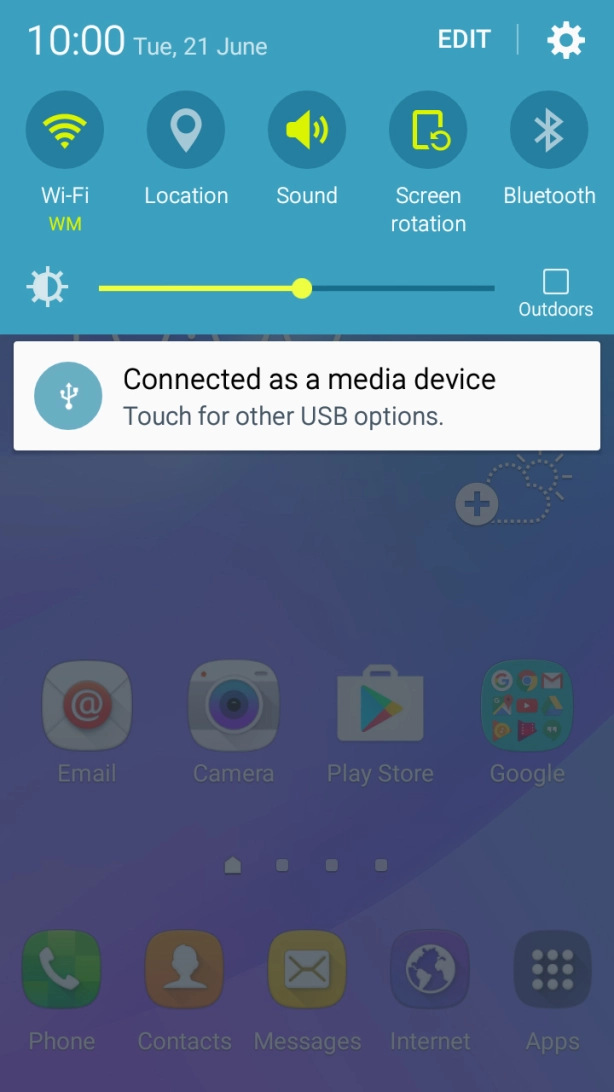


1. Find "Accounts"
Slide your finger downwards starting from the top of the screen.
To send and receive email using Exchange, your phone needs to be correctly set up for Exchange email.
Solution: Set up your phone for Exchange email


1. Find "Accounts"
Slide your finger downwards starting from the top of the screen.
To send an email, it needs to be written and sent correctly.
Solution: Write and send email


1. Find "Email"
Press Apps.
To send and receive email, your phone needs to be correctly set up for Telstra Mail.
Solution: Set up your phone for Telstra Mail


1. Find "Accounts"
Slide your finger downwards starting from the top of the screen.